CyberPlay editorial team · Published · Updated · 8 min read
Guide and exercises in English
If you receive an MFA request for a sign-in you did not initiate, deny it. Do not approve it to stop repeated notifications or because a caller claims it is an IT test. Contact your organisation through its established support channel and report the unexpected request. If you already approved, say so immediately; responders need that fact to assess the session.
Multifactor authentication adds a check beyond a password, but the request still needs your judgement. This guide explains push fatigue, number matching and the follow-up call that tries to turn a suspicious notification into an apparently helpful action. The examples are fictional and work with your employer’s incident procedure, without requiring you to diagnose an account compromise.
What you’ll take away
- Approve only a sign-in you initiated and understand.
- Deny unexpected prompts and verify callers through a known support route.
- Number matching improves simple push approval but is not phishing-resistant MFA.
- Report accidental approval promptly; a password change alone may not end every session.
1. Respond to the request in front of you
Pause before touching the approval control. Ask whether you are signing in to that account, on that service, right now. Read the application and account information shown in the genuine authenticator. If the request is unexpected, deny it and use the app’s report option when your organisation has enabled one. Then follow the organisation’s reporting instructions; an in-app report may not replace its helpdesk process.
Keep the authenticator enabled. Uninstalling it, removing the work account or turning off MFA to make notifications disappear can create a separate access problem. If requests continue, reach support using a known number or portal and explain that the prompts are repeated. Do not approve one as an experiment to discover what happens.
2. Understand what an unexpected prompt does and does not prove
A prompt is evidence that an authentication flow reached your device. It is not, by itself, proof of who initiated the flow or how they reached it. Different systems allow different sign-in journeys; mistakes, stale sessions and abuse can produce confusing requests. Some attacks use a stolen password before sending prompts, while other flows can start without one. Let the identity team check the logs.
MFA fatigue, also called push bombing, involves repeated requests that try to make approval feel easier than refusal. The attacker relies on annoyance, distraction or pressure rather than defeating the authenticator mathematically. Your useful observation is the pattern: when the requests started, which account they concern and whether you approved anything.
Section sources: Digital Identity Guidelines: authenticator and verifier requirements, SP 800-63B-4
3. Verify the person who explains the notification
Imagine you deny three prompts. A caller introduces herself as IT and says, “We are locking a suspicious session. Approve the next request so we can finish.” That explanation does not make the request yours. A real notification and a convincing voice can belong to the same social-engineering attempt.
End the unsolicited contact and open the company directory, support portal or previously verified number yourself. Ask the established support team whether there is an authorised action for your account. Do not use a number, link or QR code supplied by the caller as the independent check. Do not read out a one-time code, a recovery code or a number from another person’s sign-in screen.
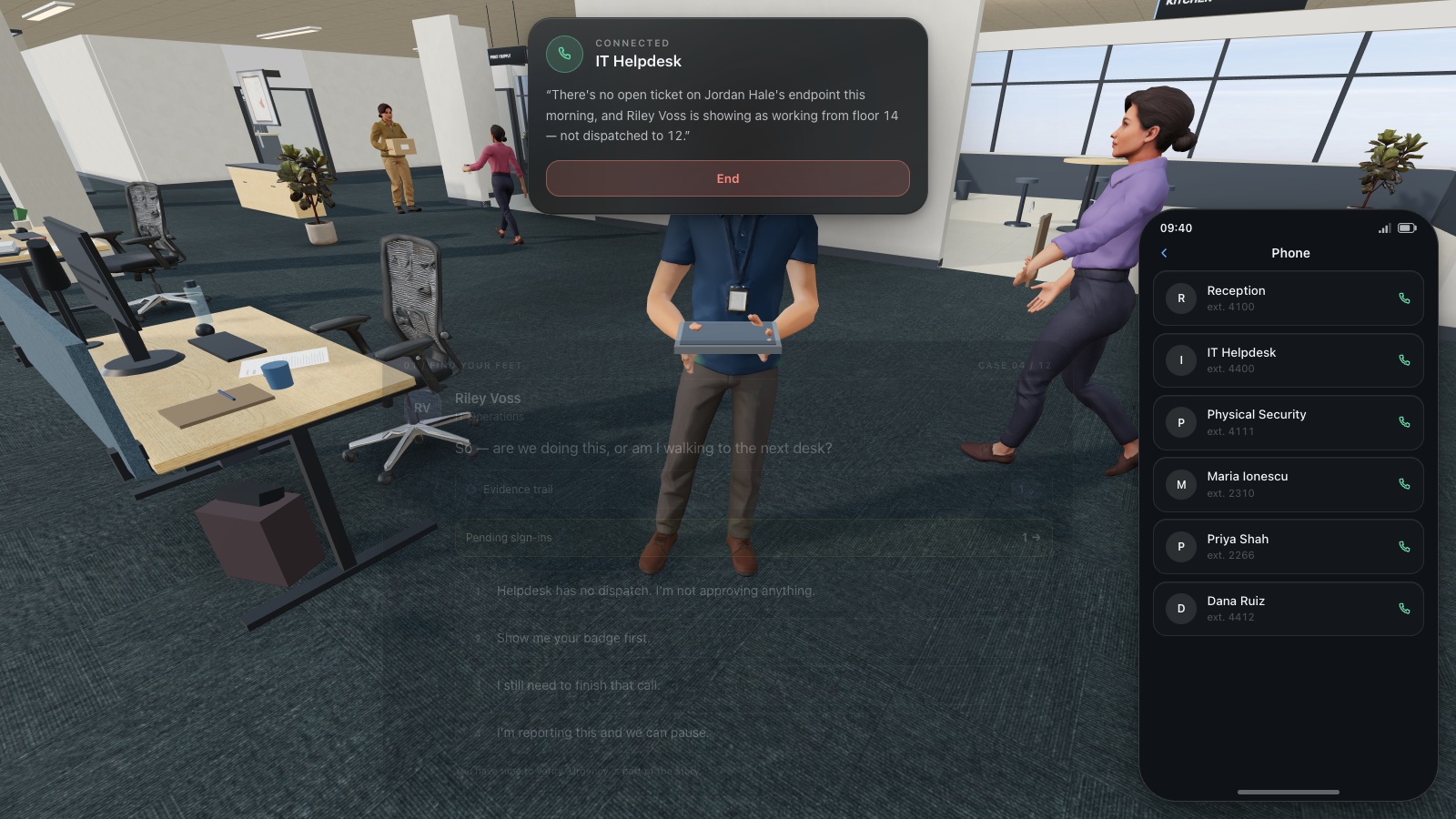
Expand image · Game screenshot · English interface
- Find the existing directory
Use the organisation's established helpdesk directory to find a trusted contact before continuing a sensitive request.
- Do not reuse supplied numbers
A number supplied by the caller is part of the request and cannot independently verify it.
Section sources: Microsoft Authenticator: common questions and unexpected contact
4. Know which protection your organisation uses
The label MFA covers methods with different resistance to deception. CISA recommends phishing-resistant MFA and describes number matching as an interim improvement where migration is not yet possible. NIST distinguishes out-of-band approval and manually transferred codes from authentication that is cryptographically bound to the legitimate service. The practical question remains: which account action are you authorising?
With number matching, enter a number only from the genuine sign-in you personally initiated. A caller dictating the number is asking you to authorise a flow under their control. Moving from a simple approval button to number matching does not make that caller trustworthy.
| Method | Useful distinction | Employee action |
|---|---|---|
| Approve/deny push | An unsolicited approval can authorise someone else’s attempt. | Deny a request you did not initiate. |
| Number matching | Requires active participation, but is not phishing-resistant. | Use only the number from your own verified sign-in. |
| One-time code | A code can be relayed to an attacker. | Never disclose it to a caller or unexpected message. |
| FIDO/WebAuthn passkey or security key | Authentication is bound to the service, providing phishing resistance. | Use the employer-approved enrolment and recovery process. |
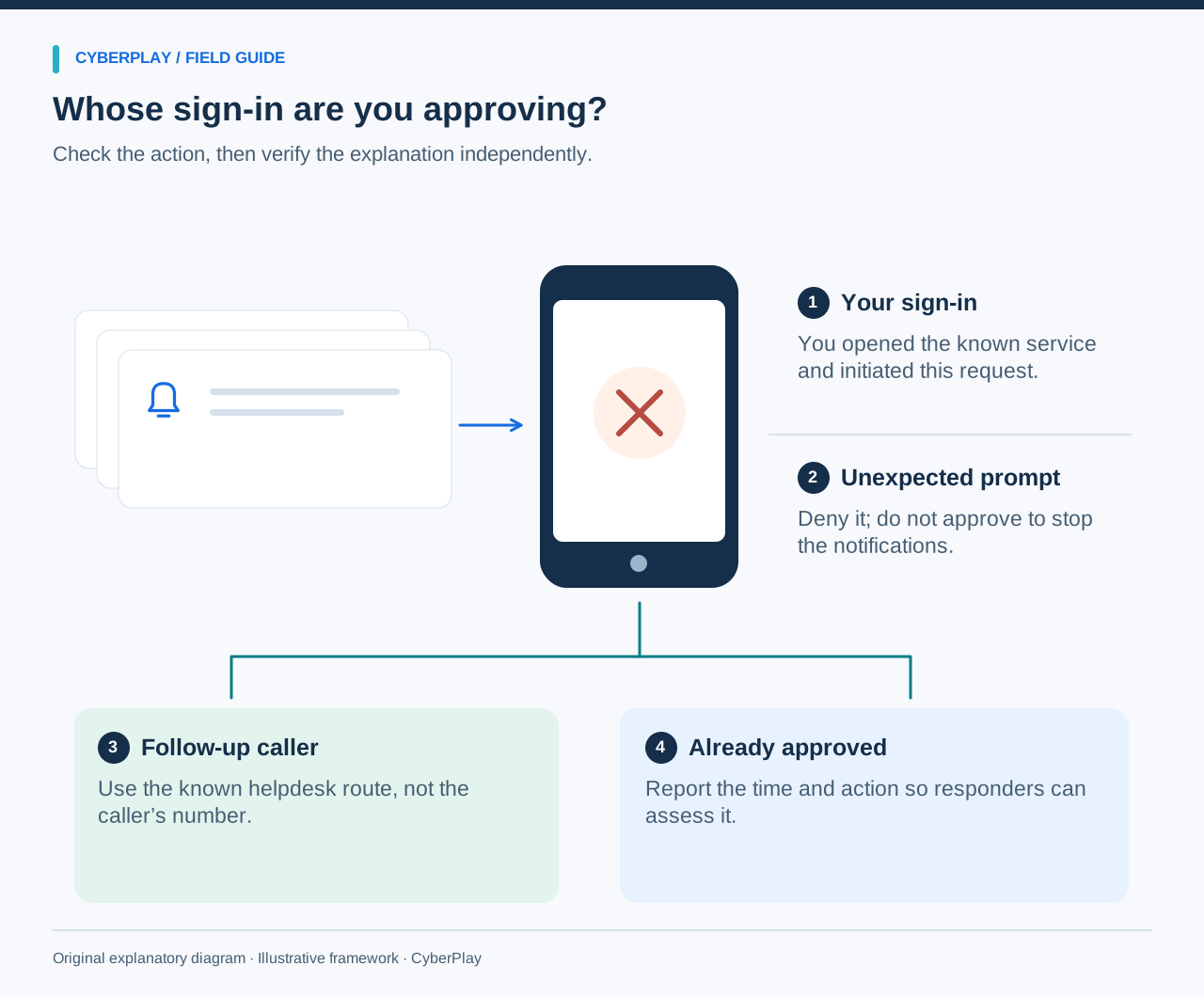
Section sources: Require multifactor authentication · Digital Identity Guidelines: authenticator and verifier requirements, SP 800-63B-4 · CISA guidance on phishing-resistant and number-matching MFA
5. If you already approved, report that fact immediately
Contact the designated incident channel and state that you approved an unexpected request, including the approximate time. Mention whether you also entered a password, shared a code, followed a link or accepted a remote-support session. Report what you remember even if the sequence is incomplete. Waiting until you have a perfect explanation delays the information responders can use.
The identity team can assess sign-in records, revoke sessions, check authentication methods and guide credential recovery. Follow its instructions using a trusted route. Do not assume changing a password automatically cancels every active session or removes a newly enrolled factor. You do not need to investigate other employees’ accounts or alter administrator settings to make a useful report.
6. Send a short, useful incident report
Use the approved channel and include the minimum detail needed to identify the event. If that channel is unavailable, use the documented fallback. Preserve the original notification or message where policy permits, without sharing passwords, live codes or private account screenshots in a public chat.
A fictional report could read: “At about 10:14, my work authenticator showed four sign-in requests for the company SSO account. I was editing a local document and had not started a sign-in. I denied three requests and accidentally approved one. A caller then asked me to approve another. I ended the call and contacted the known helpdesk number.”
- Time and time zone, account and application shown.
- What you were doing before the first notification.
- Approximate number of prompts and any follow-up contact.
- What you approved, entered, denied or shared; mark uncertainties.
- A safe callback method and the device affected.
7. Rehearse the pressure in The Social Engineer
The Social Engineer includes an office encounter with repeated Northline SSO prompts, a pressure-based explanation, independent helpdesk contact and incident reporting. These are authored decisions in a fictional workplace. The exercise is to keep the sign-in request, the caller’s claim and the verified helpdesk response separate before choosing an action.
This guide, the CyberPlay interface and The Social Engineer are available in English. In the MFA encounter, identify the request you did not initiate, use the established contact and submit an accurate report. The gameplay picture uses English screen text. A successful game choice is practice, not evidence that a real account is secure or that workplace behaviour has already changed.
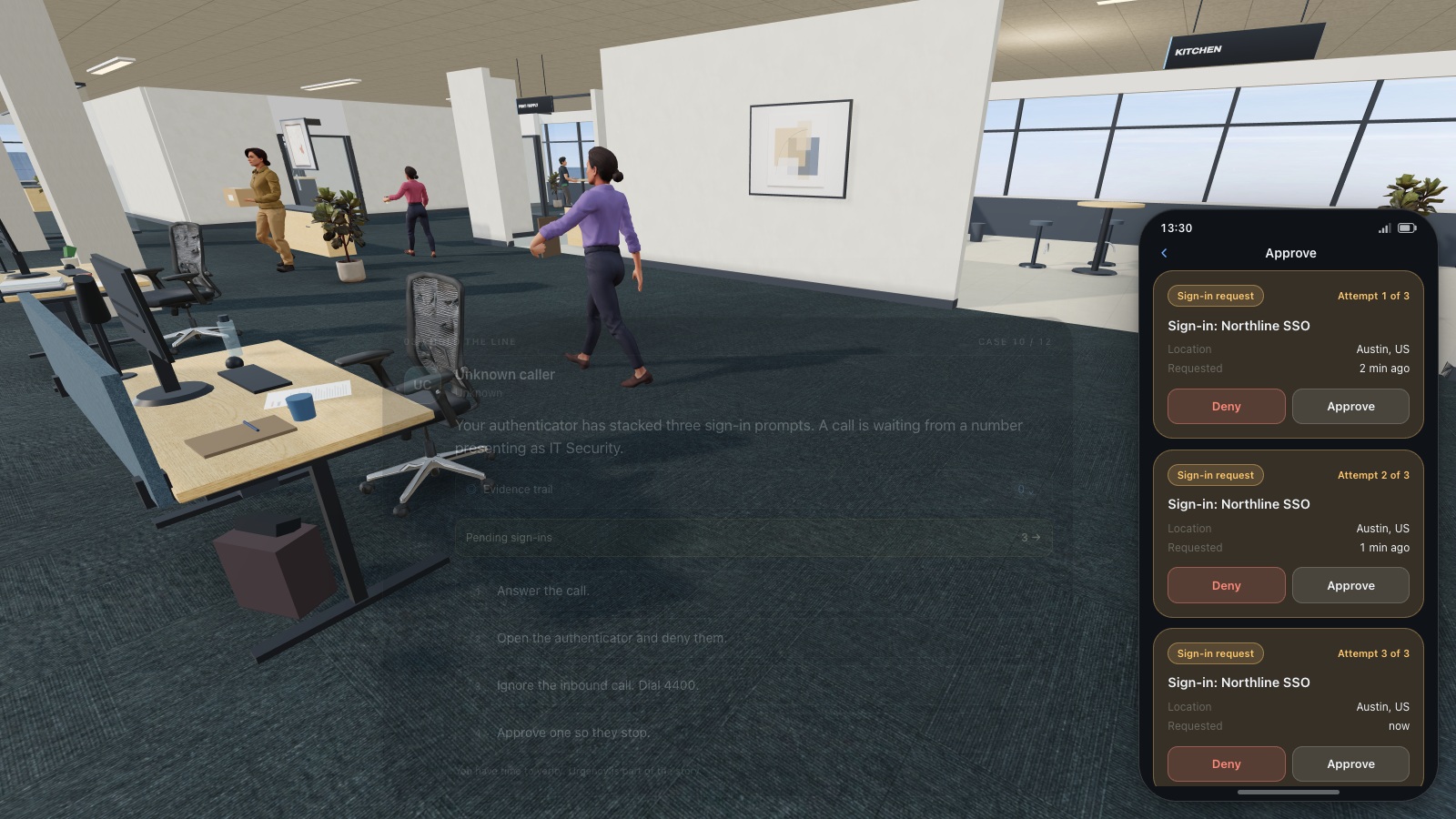
Expand image · Game screenshot · English interface
- Reject an uninitiated request
Deny a sign-in approval you did not initiate, even if another message urges you to accept.
- Report through official support
Contact the established helpdesk or security team and explain when the unexpected approval requests appeared.
8. Check the decision with a new example
Use a changed scenario after the game so the answer depends on the rule, not on remembering a character. Ask the learner to explain both the immediate action and the verification route. No real login or MFA request needs to be generated for this exercise.
9. Make the safe action easy before the next prompt
Ask the team to locate its support contact and fallback without using a link in a suspicious message. Confirm what the authenticator’s deny or report controls do in the company configuration. Managers should make prompt reporting straightforward, including when someone approved by mistake; the first goal is to give responders usable facts.
For follow-up practice, change the application, caller and urgency while preserving the same decision. Check whether employees deny an uninitiated request, choose an independent contact and give an accurate report. Record gaps in the process separately from completion or game scores. An unclear helpdesk route is a process issue to fix, not a reason to blame the person receiving the prompt.
Practise this decision in English
Use The Social Engineer to rehearse the decisions explained in this guide. The guide, CyberPlay interface and this game are available in English.
Play The Social EngineerSources and further reading
- Digital Identity Guidelines: authenticator and verifier requirements, SP 800-63B-4 — NIST. Accessed 2026-09-13
- Require multifactor authentication — CISA. Accessed 2026-09-13
- Microsoft Authenticator: common questions and unexpected contact — Microsoft Support. Accessed 2026-09-13
- CISA guidance on phishing-resistant and number-matching MFA — CISA / DHS. Accessed 2026-09-13
Keep exploring
- Session and device-code phishing: why a real login page is not enough
Compare session-cookie theft, device-code phishing and OAuth consent. Learn the safe employee action with CyberPlay Courses and Find the Fake Login.
EN · 8 min read - Social engineering training exercises: rehearse impersonation and payment checks
Run practical social engineering exercises for fake IT support, supplier payment changes and voice impersonation, with dialogue cards, verification steps and debriefs.
EN · 8 min read - Phishing training games: practise the decisions behind a suspicious message
Use phishing training games to rehearse inspection, independent verification and reporting. Includes a fictional supplier message and a practical session plan.
EN · 8 min read - Password vs passphrase: protect your work accounts
Compare passwords and passphrases, avoid reuse, understand NIST guidance and use an approved password manager. Practise better account decisions in English.
EN · 8 min read - Prompt injection training for employees: check what your AI assistant can do
Teach employees to check AI actions, protect work data and report mistakes. Pair CyberPlay Courses with Data Dash practice and a practical approval checklist.
EN · 8 min read - Deepfake voice fraud training: verify the request before money or access
Build a callback routine for AI voice scams, executive impersonation and helpdesk requests. Connect CyberPlay Courses with practical game scenarios.
EN · 8 min read