CyberPlay editorial team · Published · Updated · 8 min read
Guide and exercises in English
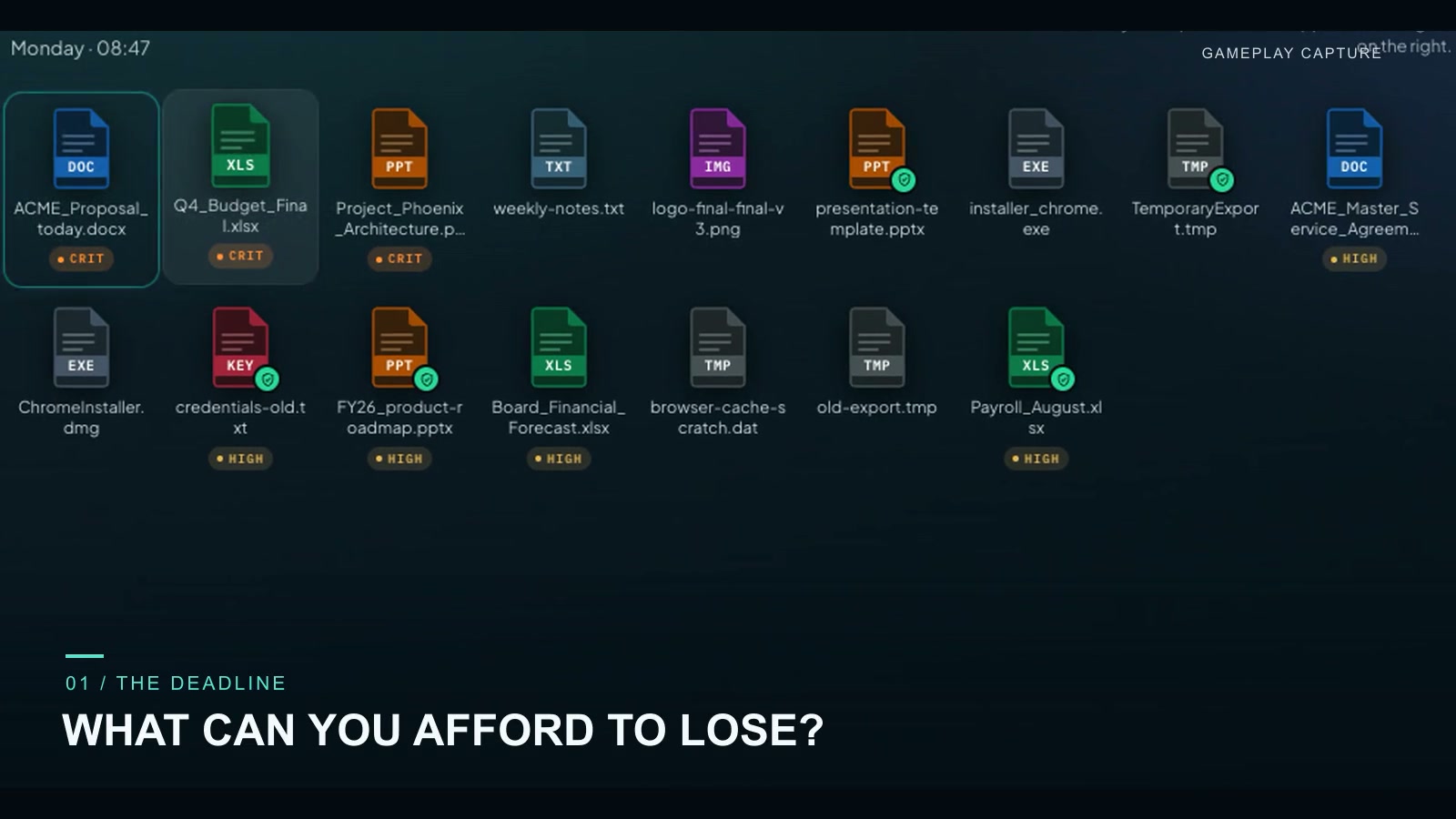
Cloud sync keeps files aligned across locations; a backup is intended to preserve a recoverable copy. Sync alone does not guarantee recovery because unwanted changes may also synchronise. A cloud service can still provide useful version history, retention and recovery features. The question is which versions remain protected, how long they remain available and whether the organisation has tested restoring them.
For employees, the practical task is to save work in approved protected locations and report missing protection or unexpected file changes. You do not need to design a backup system or restore an infected laptop yourself. This guide uses one fictional file to explain the difference between a current copy, an older usable copy and an untested assumption.
What you’ll take away
- A successful sync indicator does not by itself prove recoverability.
- Version history and protected backups depend on configuration and retention.
- Work saved only outside the approved scope may not be protected.
- During a suspected incident, restoration belongs to the authorised response process.
1. Separate convenience from recoverability
Synchronisation is useful when a document needs to appear on a laptop and in a shared workspace. If you intentionally edit or delete the document, the system may repeat that change elsewhere. The same mechanism can propagate an unwanted change. A second visible copy is therefore not automatically independent of the first copy’s failure.
A backup strategy asks a different question: if the working data is lost, corrupted or inaccessible, which protected version can be restored? That involves scope, timing, retention, access controls and a usable restore procedure. It can include cloud infrastructure; location alone does not tell you whether a copy is protected.
Section sources: Mitigating malware and ransomware attacks
2. Compare what each storage arrangement actually provides
The table describes common arrangements, not a product ranking. The same named service may have different protections in two organisations. Microsoft, for example, documents previous-version recovery in OneDrive, with available history depending on account and configuration. It would be inaccurate to say that every synced cloud file has no recovery option.
Ask the owner of your actual service to confirm its settings. A sync icon reports part of a workflow; it does not tell you whether a deleted account can be recovered, whether older versions expired or whether an attacker with administrative access could alter the protection.
| Arrangement | What it can provide | What remains to check |
|---|---|---|
| Local-only work folder | A current working file on one device. | Is the folder included in an approved backup at all? |
| Synced work folder | A current copy available across connected locations. | Can deletion or corruption propagate, and what history is retained? |
| Versioned cloud storage | Earlier versions that may support recovery. | Retention, permissions, deletion handling and restore scope. |
| Separately protected backup | A recovery copy with controls distinct from ordinary work access. | Backup age, protection from compromise and tested restoration. |
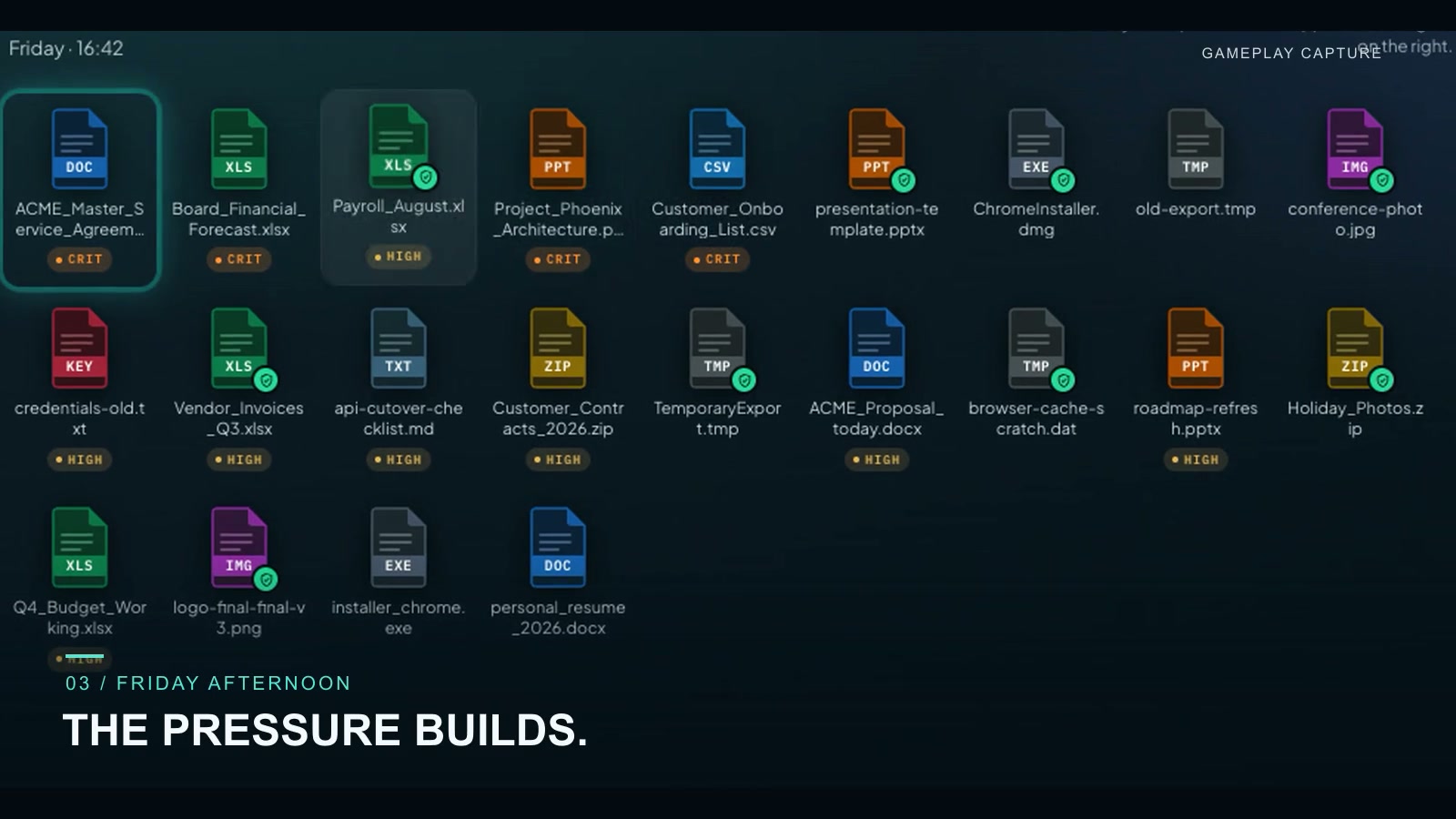
Expand image · Game screenshot · English interface
- Identify work that must be recoverable
Name the documents the business needs, their owner and acceptable loss of recent changes before selecting storage.
- Check protection, not just file presence
A visible file or sync indicator is not a restore test. Ask which retained versions survive deletion or ransomware.
Section sources: Restore a previous version of a file stored in OneDrive
3. Follow one fictional file through a working day
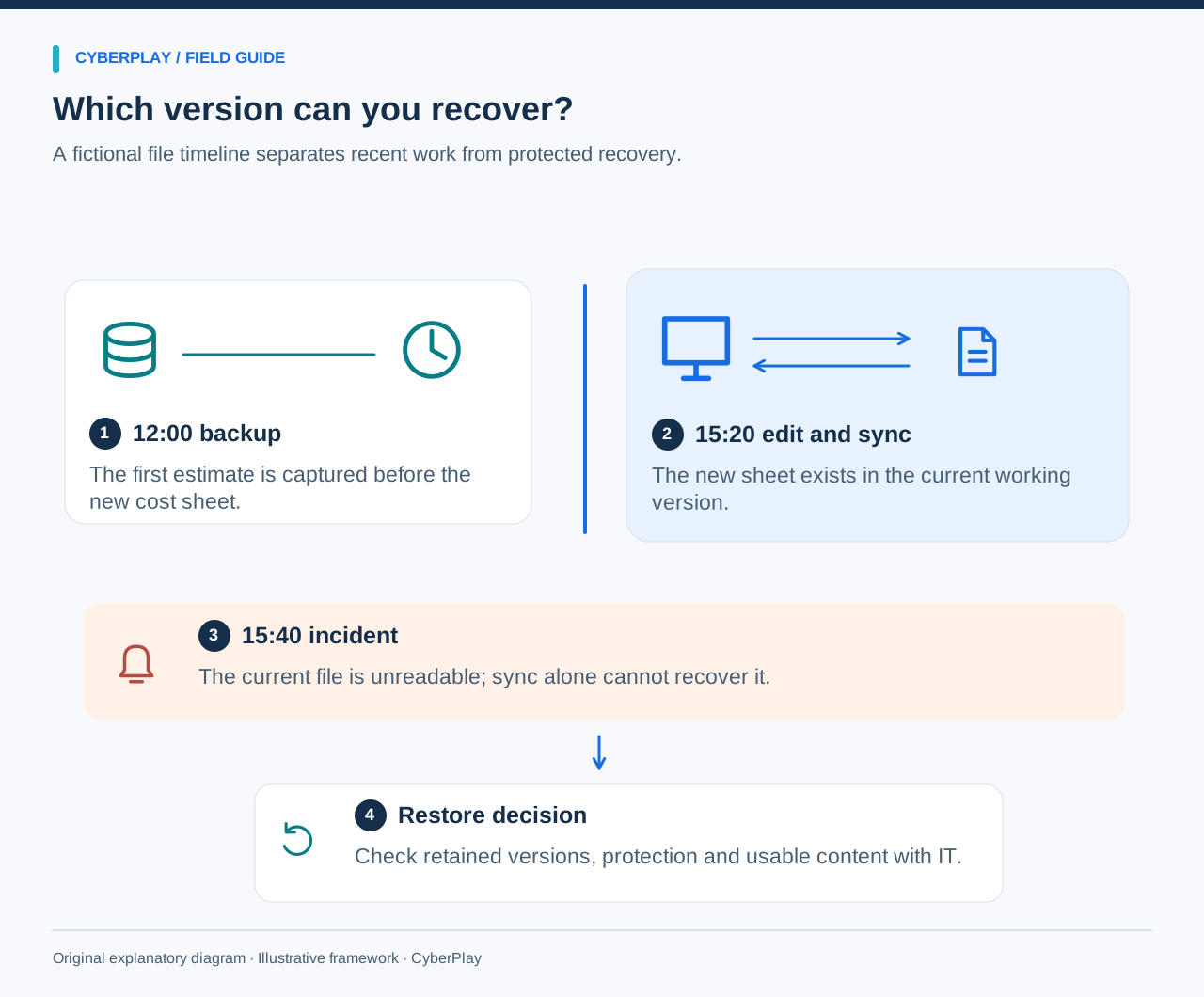
At 09:00, an employee saves the first version of a project estimate in the approved workspace. A protected backup captures that version at 12:00. At 15:20, the employee adds a new cost sheet and sync completes. At 15:40, a suspected incident makes the current file unreadable. These times are invented to make the trade-off visible.
The 12:00 backup may preserve the earlier estimate but cannot contain changes made at 15:20. A retained 15:20 version in the cloud might preserve those changes if its recovery controls survived and the content is usable. A USB drive left connected is another reachable copy, not proof of separation. Responders need to check the actual copies rather than assume that the newest filename identifies a safe version.
| Time or state | Known fact | Recovery implication |
|---|---|---|
| 12:00 backup | Captured before the new cost sheet. | May be usable but misses later work. |
| 15:20 synced version | Includes the additional sheet. | Useful only if a recoverable version remains protected. |
| 15:40 damaged current file | The live file cannot be read. | A sync of that state does not recreate the earlier content. |
| Authorised restore test | Selected copy opens and required content is checked. | Provides evidence about that restore, not every future incident. |
4. Ask IT five questions before the incident
“Are we backed up?” is too broad to guide your next save. Ask questions tied to the work you create. A design file, shared spreadsheet and local application database may have different coverage even when they sit on the same computer. BSI’s guidance connects central storage and tested recovery with the backup concept; employee storage choices must match that scope.
Record the service owner’s answers in the approved team documentation, without publishing sensitive architecture or access details. An unanswered question is a gap to assign to an owner, not a reason to build a personal backup service.
- Which approved folders, applications and shared workspaces are covered?
- How much recent work could be missing from the available recovery points?
- How long are earlier versions and deleted files retained?
- Who can request and authorise restoration if the normal account is unavailable?
- When was recovery last tested for this type of file or service?
Section sources: Data backup concept and centralised data storage
5. Make your storage habits fit the protection
Save new work in the organisation’s approved location from the beginning, including drafts with unique content. Check for unresolved sync errors through the normal support process. A document that never reached its protected destination may fall outside the expected recovery plan even if a similarly named older document exists there.
Ask before moving a shared project to another drive, account or application. That move can change who can access it and which backup covers it. Keep personal cloud accounts and unmanaged USB copies out of the workaround. For unusual file types or offline travel, request an approved storage plan before the deadline makes improvisation tempting.
6. During an incident, do not improvise a restore
If files suddenly change names, become unreadable or show other concerning symptoms, stop ordinary work and follow the incident procedure. Contact the designated support route. Do not connect your backup media, repeatedly restore old versions or copy affected files into another team’s workspace to test them. You could overwrite useful evidence or expose a surviving copy.
Authorised responders decide which device, account and recovery point can be trusted. Backup helps availability, but it does not undo data theft or automatically restore every business dependency. An employee can describe what work is missing and when it was last correct; the response team evaluates containment and recovery.
Section sources: Mitigating malware and ransomware attacks
7. Explore the trade-off in Backup or Lose It
Backup or Lose It follows business files through storage decisions, an incident and a recovery debrief. Missions include The Deadline, Everything Is Synced… Right? and Friday Afternoon. Its fictional storage model contrasts current work, company sync, protected SecureVault copies and other locations. Explain which work a selected copy contains and what protection the scenario gives it.
This guide, the CyberPlay interface and Backup or Lose It are available in English. The article uses actual gameplay captures with English screen text. The game makes storage and recovery consequences visible in a simplified fictional model. Its storage labels are not claims about your employer’s services, and completing it does not test your real backups. Any real restoration must follow the organisation’s authorised recovery process.
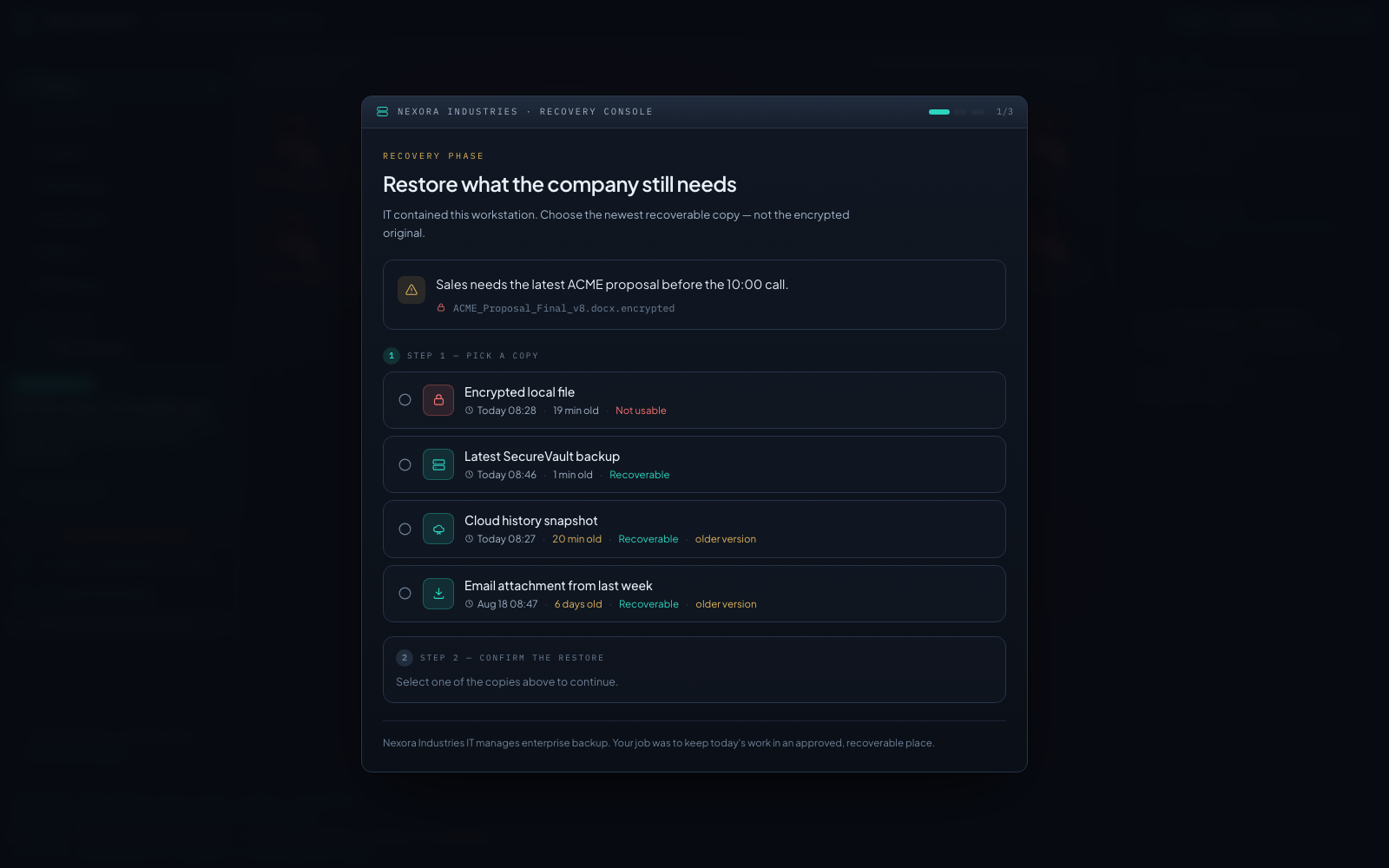
Expand image · Game screenshot · English interface
- Check whether the copy can be recovered
The encrypted local file is unusable in this scenario. Compare the protected backup and retained cloud version instead.
- Match the version to the work required
Compare the dates and the business task. This simulated choice follows IT containment; employees should use their approved recovery process.
8. Choose the question that matters in a new scenario
Use the example below with a colleague after reading the guide. The aim is to distinguish the freshness of a copy from its recoverability. Do not ask participants to delete a real file or simulate ransomware on a work device.
9. Turn the lesson into a small team check
Choose one ordinary work product and identify its approved home, owner and recovery contact. Ask the authorised administrator to confirm coverage and explain an appropriate restore test. Employees can verify that their required content is present in an approved test result; they should not change retention policies or restore production systems as an informal exercise.
Finish with a concrete action if there is a gap: move uncovered drafts through an approved process, resolve a sync error or document the fallback restore contact. Revisit the question when the team adopts a new tool. Counting copies is less useful than understanding which work each copy contains and what would allow the organisation to recover it safely.
Practise this decision in English
Use Backup or Lose It to rehearse the decisions explained in this guide. The guide, CyberPlay interface and this game are available in English.
Play Backup or Lose ItSources and further reading
- Mitigating malware and ransomware attacks — UK National Cyber Security Centre. Accessed 2026-09-13
- Restore a previous version of a file stored in OneDrive — Microsoft Support. Accessed 2026-09-13
- Data backup concept and centralised data storage — BSI. Accessed 2026-09-13
Keep exploring
- Ransomware warning signs: an employee’s first-response checklist
Files suddenly unreadable or renamed? Learn ransomware warning signs, safe first actions and how to give IT a useful report. Practise the response in English.
EN · 8 min read - Ransomware tabletop exercise for non-technical teams: a facilitator guide
Run a ransomware tabletop for non-technical teams with fictional injects, clear roles, escalation decisions, continuity questions and a downloadable facilitator pack.
EN · 8 min read - Security awareness training topics: choose by role and workplace risk
Choose employee security awareness topics by role and workplace risk. Use a practical curriculum matrix for phishing, accounts, data, physical access, AI and reporting.
EN · 9 min read - Prompt injection training for employees: check what your AI assistant can do
Teach employees to check AI actions, protect work data and report mistakes. Pair CyberPlay Courses with Data Dash practice and a practical approval checklist.
EN · 8 min read - Session and device-code phishing: why a real login page is not enough
Compare session-cookie theft, device-code phishing and OAuth consent. Learn the safe employee action with CyberPlay Courses and Find the Fake Login.
EN · 8 min read - Deepfake voice fraud training: verify the request before money or access
Build a callback routine for AI voice scams, executive impersonation and helpdesk requests. Connect CyberPlay Courses with practical game scenarios.
EN · 8 min read