CyberPlay editorial team · Published · Updated · 8 min read
Guide and exercises in English
Public Wi-Fi is not automatically unsafe. The FTC explains that widespread website encryption makes using public networks usually safe. For work, first follow your employer’s connectivity rules, use the approved device and access method, and check the destination before entering anything sensitive. HTTPS protects a connection; it does not establish that the organisation operating a website is trustworthy.
This guide helps you make a practical connection decision at a hotel, café or airport. You will compare network evidence, recognise a portal asking for the wrong credentials, and prepare a usable alternative. The examples are fictional; the checklist should be completed with your organisation’s real support route before you travel.
What you’ll take away
- Follow employer policy even when a public network supports encrypted traffic.
- A network name, password requirement or strong signal does not prove who operates it.
- Pause at unexpected work-password requests, certificate warnings or installation prompts.
- Use the approved hotspot or other fallback when verification fails.
1. Separate network safety from website trust
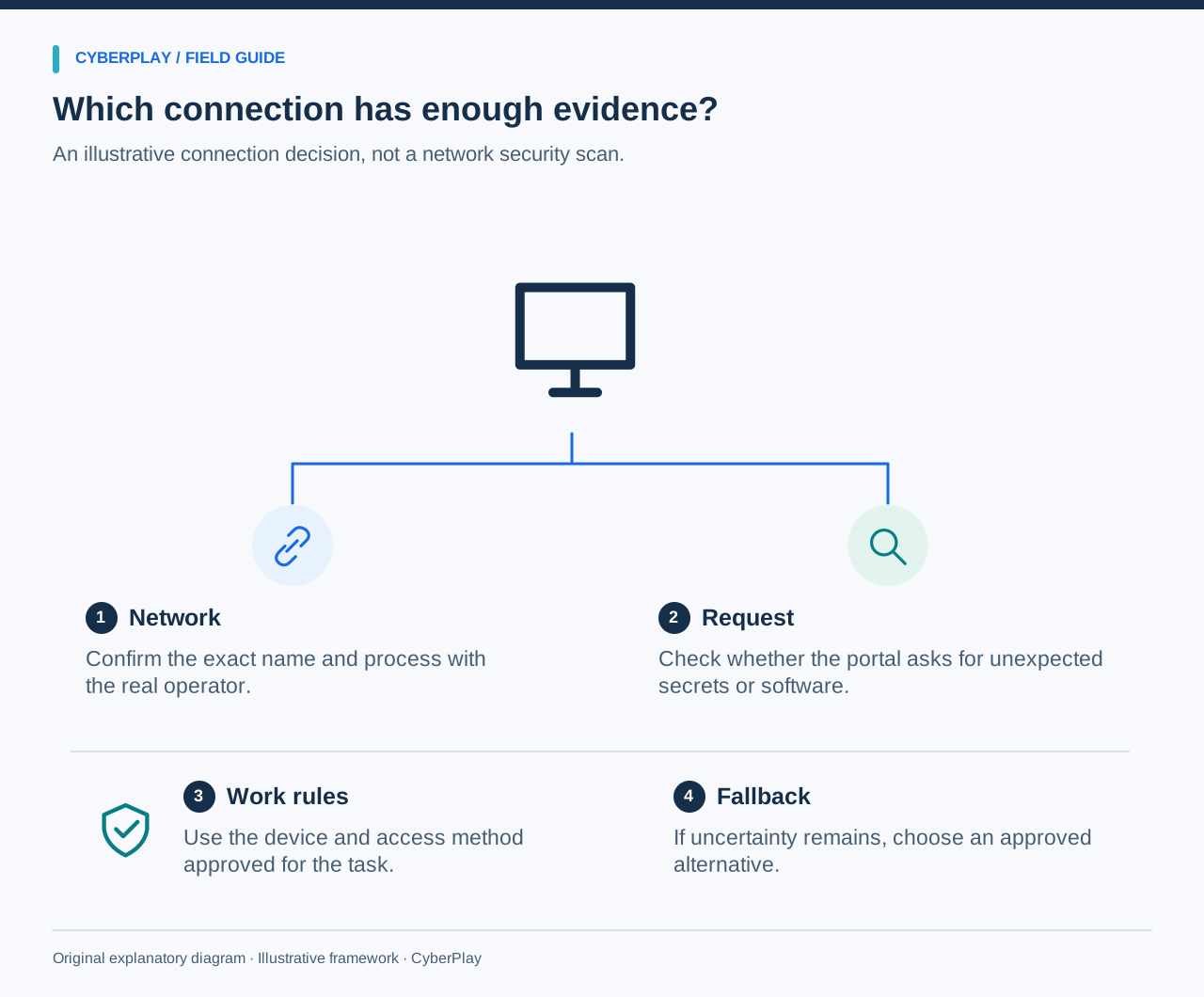
There are two different questions: is this an allowed connection for this work task, and is this the service I intended to use? A genuine hotel network can carry a phishing website. A website operated by a scammer can use valid HTTPS. Neither the venue’s reputation nor a browser security indicator answers both questions.
The FTC’s February 2023 explanation is useful because it corrects the claim that every public hotspot exposes encrypted passwords. It is consumer guidance, not approval for a particular employer’s systems. If your organisation requires mobile data, a managed VPN or an alternative working location, use that process.
Section sources: Are public Wi-Fi networks safe?
2. Confirm the network and the access process
Ask the venue’s actual reception or service desk for the exact network name and how guests obtain access. Compare that with what your device shows. A printed notice can help, but an unfamiliar sticker or a sign beside a random access point should not be your only evidence.
An evil twin is a deceptive network that imitates another network’s identity. The strongest signal may simply be closest. A lock icon in the network list indicates a protection setting, not verified ownership. If two names remain plausible, stop guessing and use the approved fallback. Do not investigate or unplug equipment that belongs to the venue.
3. Inspect what the captive portal wants
A captive portal is the page some networks present before allowing internet access. Guest terms, a venue-issued code or a room-based process may be expected after confirmation with the operator. These are examples, not universal rules: real access arrangements vary.
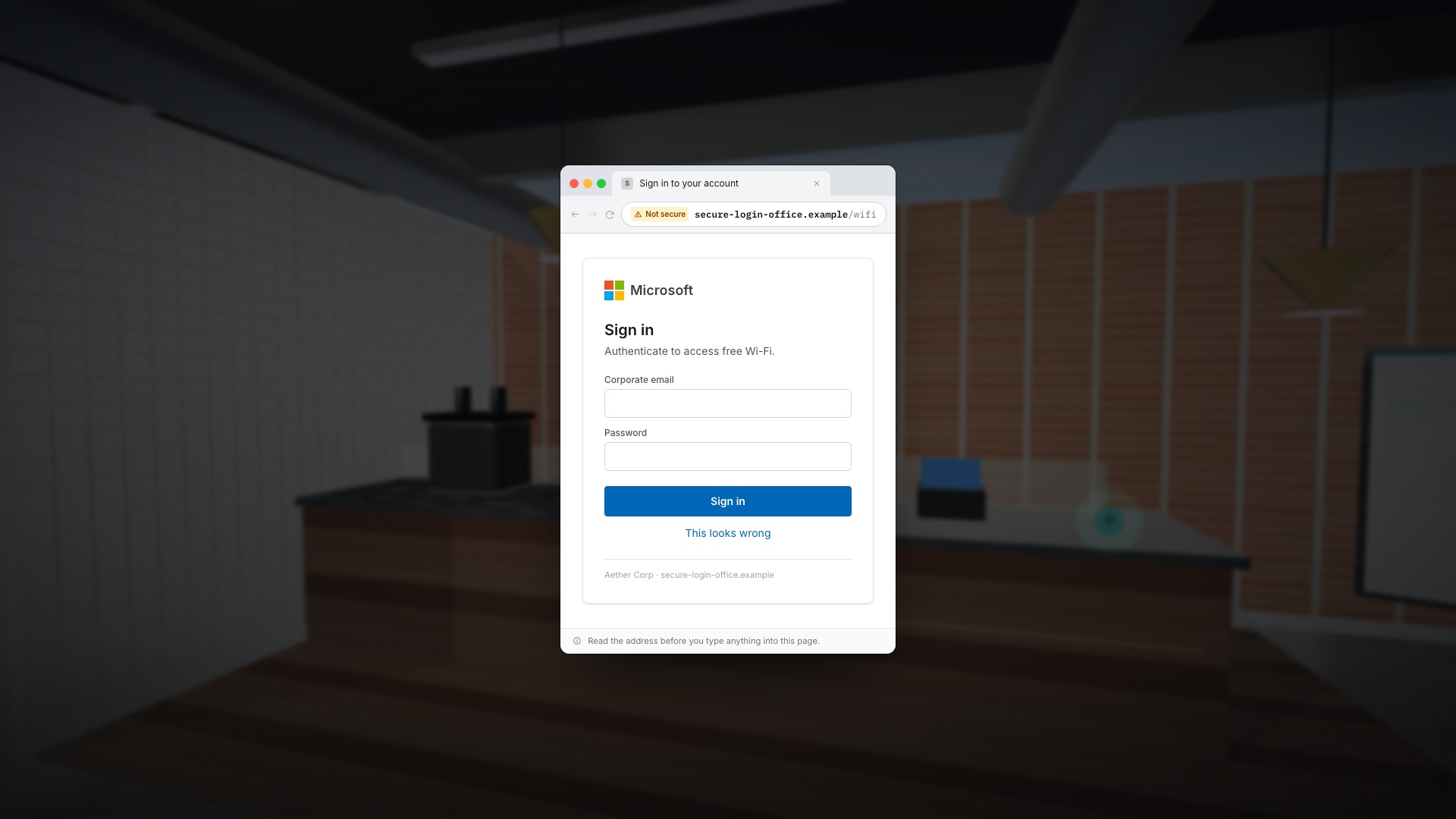
The pictured training portal asks for a corporate email and password to activate free Wi-Fi. That request crosses from obtaining connectivity into handing over a work-account secret. Close it and verify through your known support route. Do not assume that a Microsoft-style logo, a familiar page layout or adding HTTPS would make that request appropriate.
Expand image · Game screenshot · English interface
- Verify the venue network
Confirm the expected network with the venue through a trusted route before relying on a familiar-looking network name.
- Question unexpected sign-in pages
Do not enter corporate credentials into an unexpected portal; use the approved connection process and seek support if needed.
4. Treat a certificate warning as a stopping point
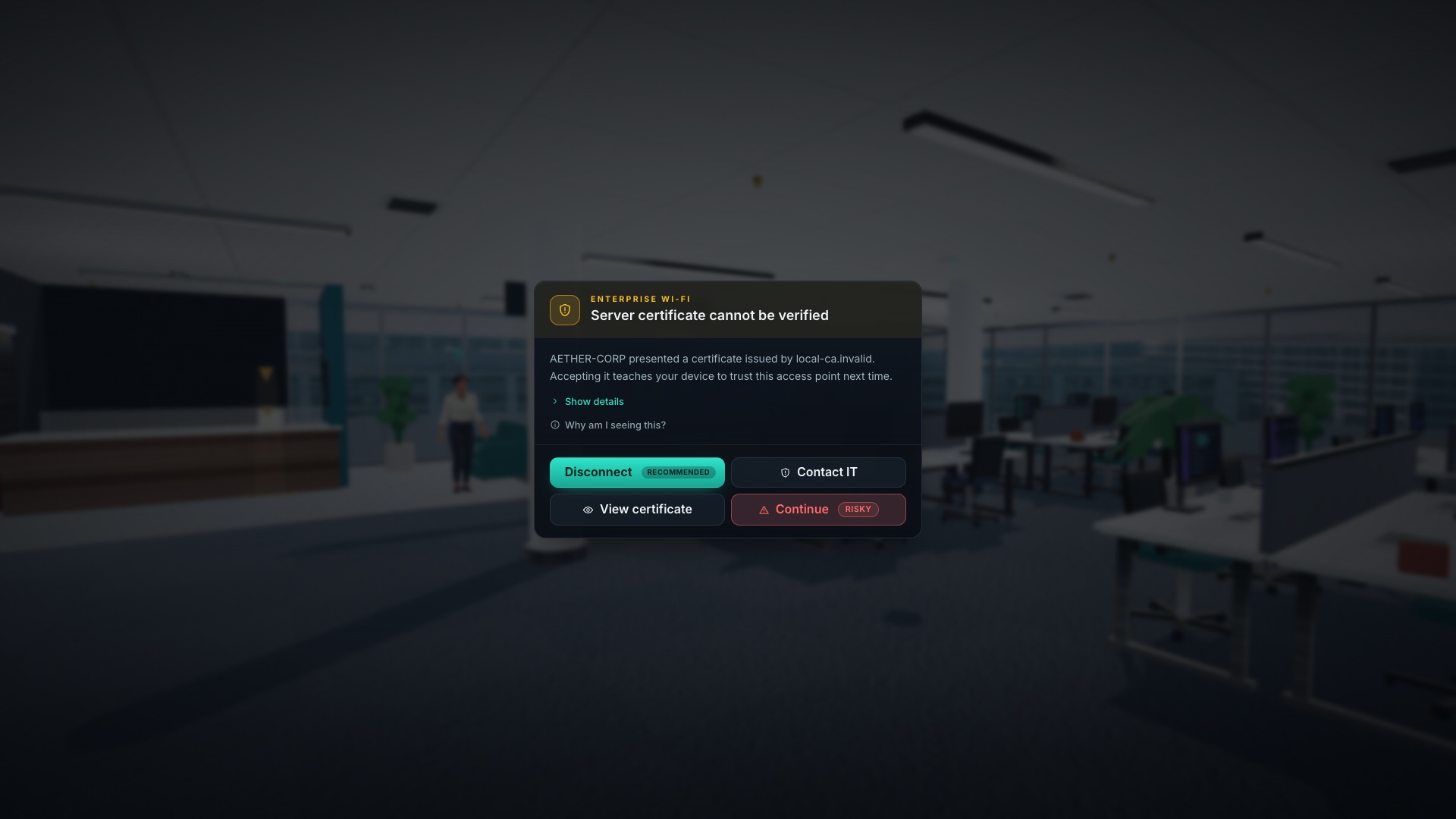
If your browser reports that a certificate cannot be trusted, or a Wi-Fi connection asks you to trust an unfamiliar server certificate, do not click through just to get online. The warning may reflect a configuration problem or an attack; an employee does not need to diagnose which before asking IT.
Managed enterprise networks can legitimately use configured certificates and organisational accounts. That is different from trusting an unexpected prompt because its network name looks right. Use your organisation’s documented setup and support route. Do not install a certificate, configuration profile, extension or repair tool supplied by an unverified guest portal.
Expand image · Game screenshot · English interface
- Stop at an unexpected certificate warning
Do not bypass the warning to reach a work service. Use an approved alternative and report the situation to IT.
- A network name does not establish trust
Verify the expected network independently. A familiar name or captive portal does not authorize software installation or credential sharing.
5. Understand what a VPN and hotspot change
An approved VPN protects traffic routed through that tunnel. NCSC guidance explains that coverage depends on configuration; a VPN on a phone does not necessarily protect a tethered laptop’s traffic. A VPN also does not make a deceptive destination honest or reverse the act of giving a password to it.
A managed mobile hotspot may avoid the guest-network problem, but it still needs an approved device, access plan and work-account protections. Check roaming, data limits and the laptop’s connection before a critical meeting. If the required VPN cannot connect, ask support for the authorised fallback instead of disabling controls or installing a consumer VPN.
Section sources: Virtual private networks: device security guidance
6. Compare these fictional hotel choices
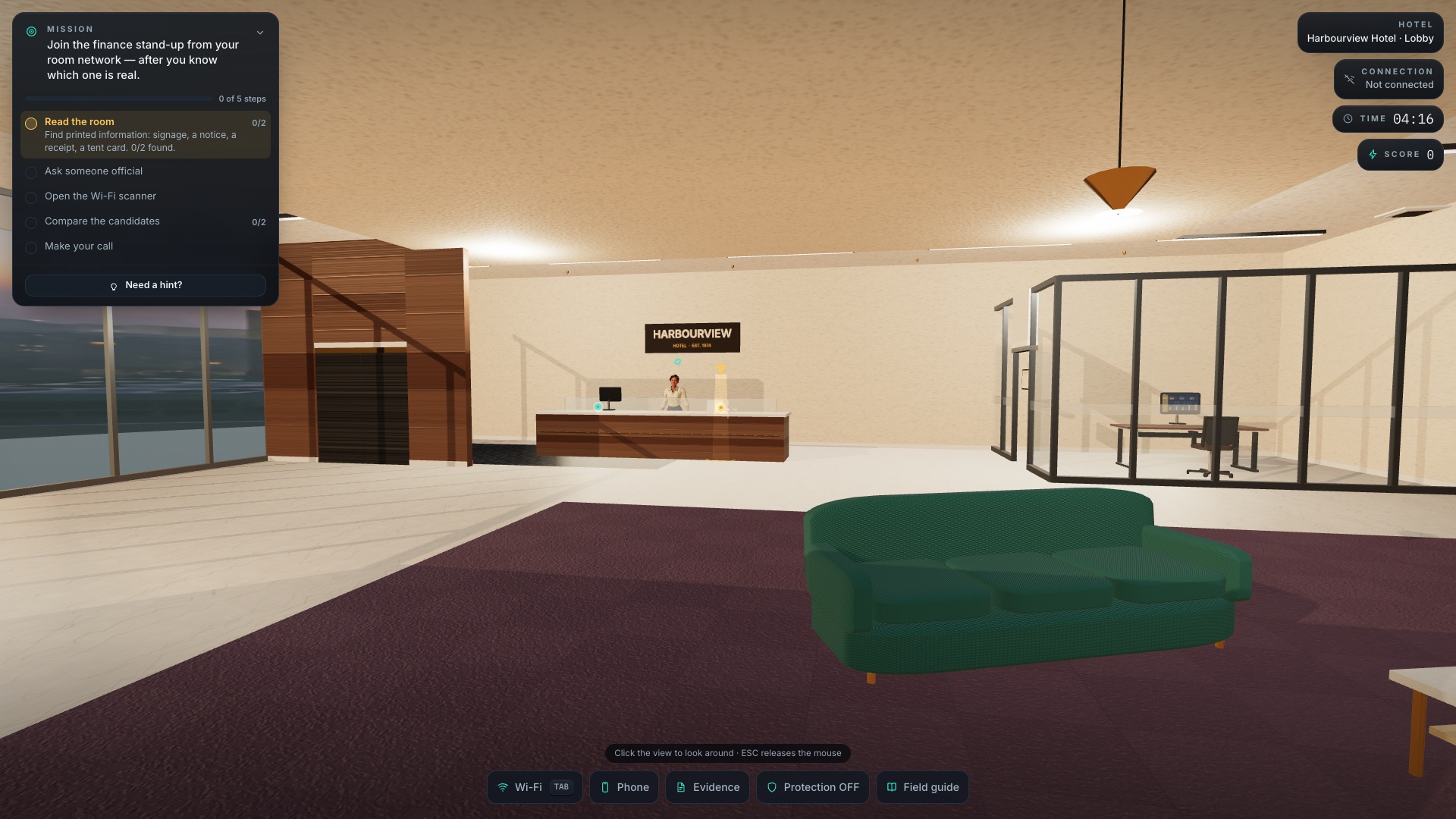
In Wi-Fi Picker’s hotel mission, reception and the key-card sleeve identify Hotel_Guest. A similar name, HotelGuest, has a stronger signal and a portal seeking a Microsoft 365 login. The lesson is to connect evidence with the requested action, not memorise an underscore as a security control.
| Observed choice | What the evidence establishes | Reasonable next step |
|---|---|---|
| Hotel_Guest, confirmed by reception | The stated guest process matches the venue’s explanation. | Check employer permission and follow the verified guest process. |
| HotelGuest, strongest signal | The name and signal do not establish the operator. | Do not supply work credentials; verify or use the approved alternative. |
| A nearby network named iPhone | Someone has offered a hotspot, but ownership is unknown. | Use your own approved hotspot rather than assuming this one is yours. |
| A documented corporate network with a new certificate warning | The name is expected; the new trust decision is unresolved. | Contact IT through the known directory before accepting it. |
7. Prepare a connection checklist before departure
A useful travel checklist identifies a working alternative rather than merely telling people to be careful. Fill in the answers while you still have normal access to your organisation. Keep the support contact available through an approved offline method; do not store account secrets in that note.
Device settings differ. Follow the managed instructions for auto-join, saved networks and sharing rather than changing controls you do not own. NCSC end-user guidance explicitly calls for advice matched to the device and local business procedures.
- Confirm which connection types and tasks are permitted.
- Check the approved device, required updates and remote-access application.
- Record the verified support route and the after-hours option.
- Identify an approved fallback, including its roaming or data constraints.
- Review automatic connection settings; forget temporary guest networks when policy permits.
Section sources: Device security advice for end users
8. Practise the decision in Wi-Fi Picker
Explore the setting, inspect the available evidence and explain your choice before connecting. In the hotel mission, distinguish the venue-issued access process from the request for work credentials. In the corporate setting, practise stopping at an unverified certificate. The game’s environments provide authored clues; actual venues may provide less certainty.
CyberPlay offers its interface, article guides and assessments in English and eight other supported languages. Wi-Fi Picker lists those nine game languages in its catalogue; check the game page before assigning a session. The screenshots here show the English interface. A game score records this simulation, not proof that every future connection is safe.
9. If you already used the network
Describe what happened precisely. Joining a network, opening a portal, submitting a password, approving an MFA request and installing a profile are different events. Stop further interaction with suspicious prompts and contact the authorised support team promptly through a trusted route. Follow its instructions for disconnecting, changing credentials or checking the device.
Record the time, venue, visible network name, destination and actions already taken. Do not include passwords in the report or reconnect to gather more evidence. If your work account is inaccessible, use the alternative contact prepared before travel. Avoid claiming that a single suspicious page proves a device was compromised.
10. Try a different connection problem
This follow-up removes the obvious brand-copying clue. Explain how you would finish the work task safely, including what you would tell a colleague waiting for the meeting.
Practise choosing a work connection
Use Wi-Fi Picker to inspect a guest network, question a portal and choose an approved alternative. The game page lists its supported languages.
Explore Wi-Fi PickerSources and further reading
- Are public Wi-Fi networks safe? — US Federal Trade Commission. Accessed 2026-09-13
- Virtual private networks: device security guidance — UK National Cyber Security Centre. Accessed 2026-09-13
- Device security advice for end users — UK National Cyber Security Centre. Accessed 2026-09-13
Keep exploring
- Security awareness training topics: choose by role and workplace risk
Choose employee security awareness topics by role and workplace risk. Use a practical curriculum matrix for phishing, accounts, data, physical access, AI and reporting.
EN · 9 min read - Phishing training games: practise the decisions behind a suspicious message
Use phishing training games to rehearse inspection, independent verification and reporting. Includes a fictional supplier message and a practical session plan.
EN · 8 min read - How to spot a fake login page—even when it uses HTTPS
Check a login page’s real address, password-manager signals and request context. Learn why HTTPS is not proof of trust, with an English practice exercise.
EN · 8 min read - Prompt injection training for employees: check what your AI assistant can do
Teach employees to check AI actions, protect work data and report mistakes. Pair CyberPlay Courses with Data Dash practice and a practical approval checklist.
EN · 8 min read - Session and device-code phishing: why a real login page is not enough
Compare session-cookie theft, device-code phishing and OAuth consent. Learn the safe employee action with CyberPlay Courses and Find the Fake Login.
EN · 8 min read - Deepfake voice fraud training: verify the request before money or access
Build a callback routine for AI voice scams, executive impersonation and helpdesk requests. Connect CyberPlay Courses with practical game scenarios.
EN · 8 min read