CyberPlay editorial team · Published · Updated · 8 min read
Guide and exercises in English
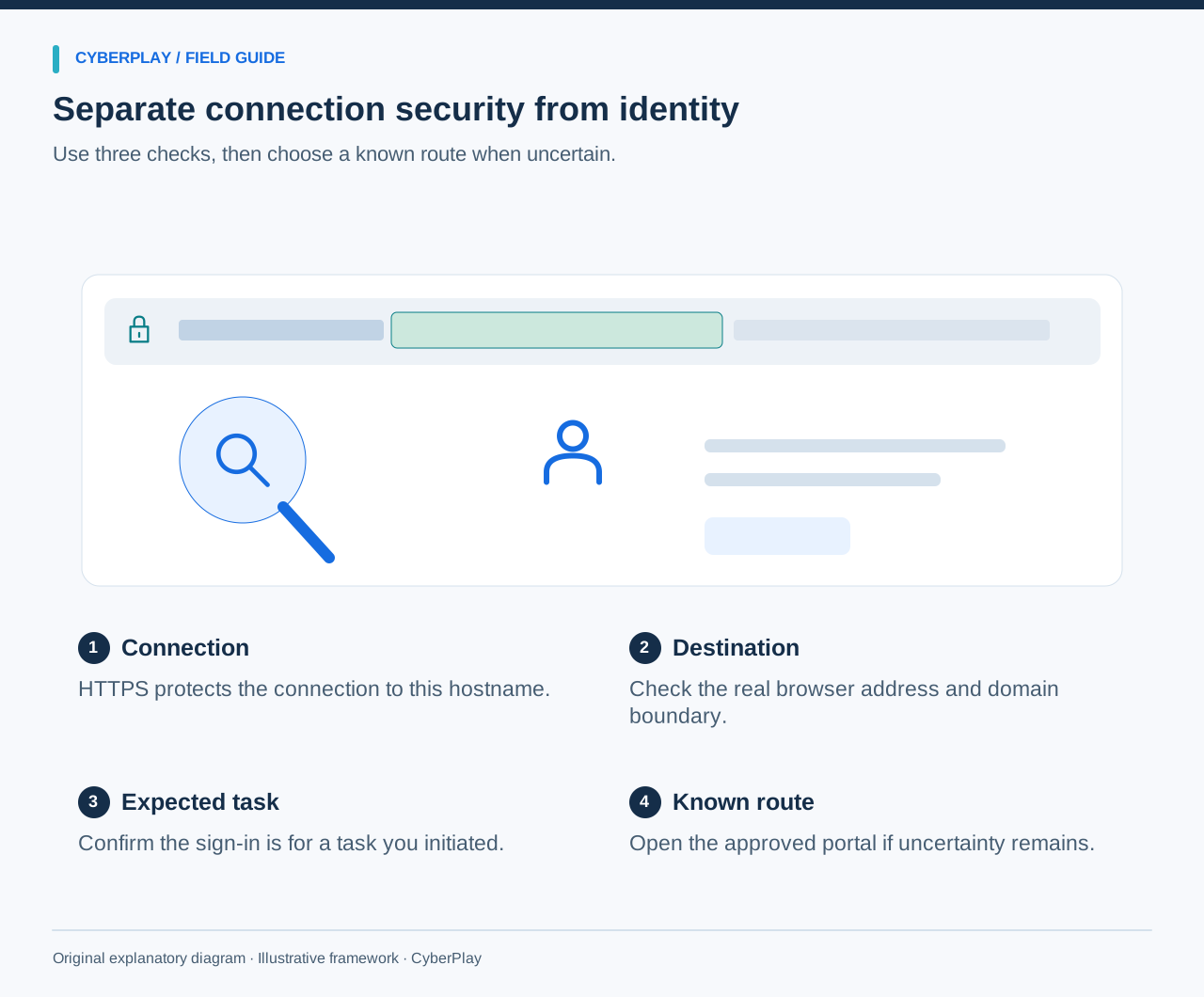
Before entering a work password, check the real browser address and whether you expected the sign-in. A logo, convincing layout and HTTPS do not prove that the page belongs to the organisation you intend to use. If the destination or request remains unclear, stop and open the service from your approved app or known portal.
A fake login page tries to collect credentials by impersonating a familiar service. This guide explains domains, password-manager signals and fake browser windows through reserved example addresses. It also covers legitimate sign-in redirects and what to report if you already entered information, so that caution does not become guesswork.
What you’ll take away
- Inspect the browser’s address, not an address printed inside the webpage.
- HTTPS protects the connection to a hostname; it does not endorse the site’s operator.
- Missing password autofill is a reason to investigate, not proof that a page is fake.
- Use a known portal when uncertain and report any information already entered.
Why HTTPS does not make a login page trustworthy
HTTPS encrypts the connection and authenticates the server for the hostname being visited. A fraudulent website can also obtain a certificate for its own hostname. That protects the connection to the fraudulent site; it does not turn the site into your employer, bank or identity provider.
In its May 2023 explanation of the lock-icon redesign, the Chromium team reported that only 11% of participants in its 2021 research correctly understood the icon’s precise meaning. That finding concerns those study participants and an older interface, not today’s workforce or CyberPlay users. The practical lesson remains to check the destination and task rather than treating a connection icon as an endorsement.
Section sources: An Update on the Lock Icon
Read the hostname and keep the full address available
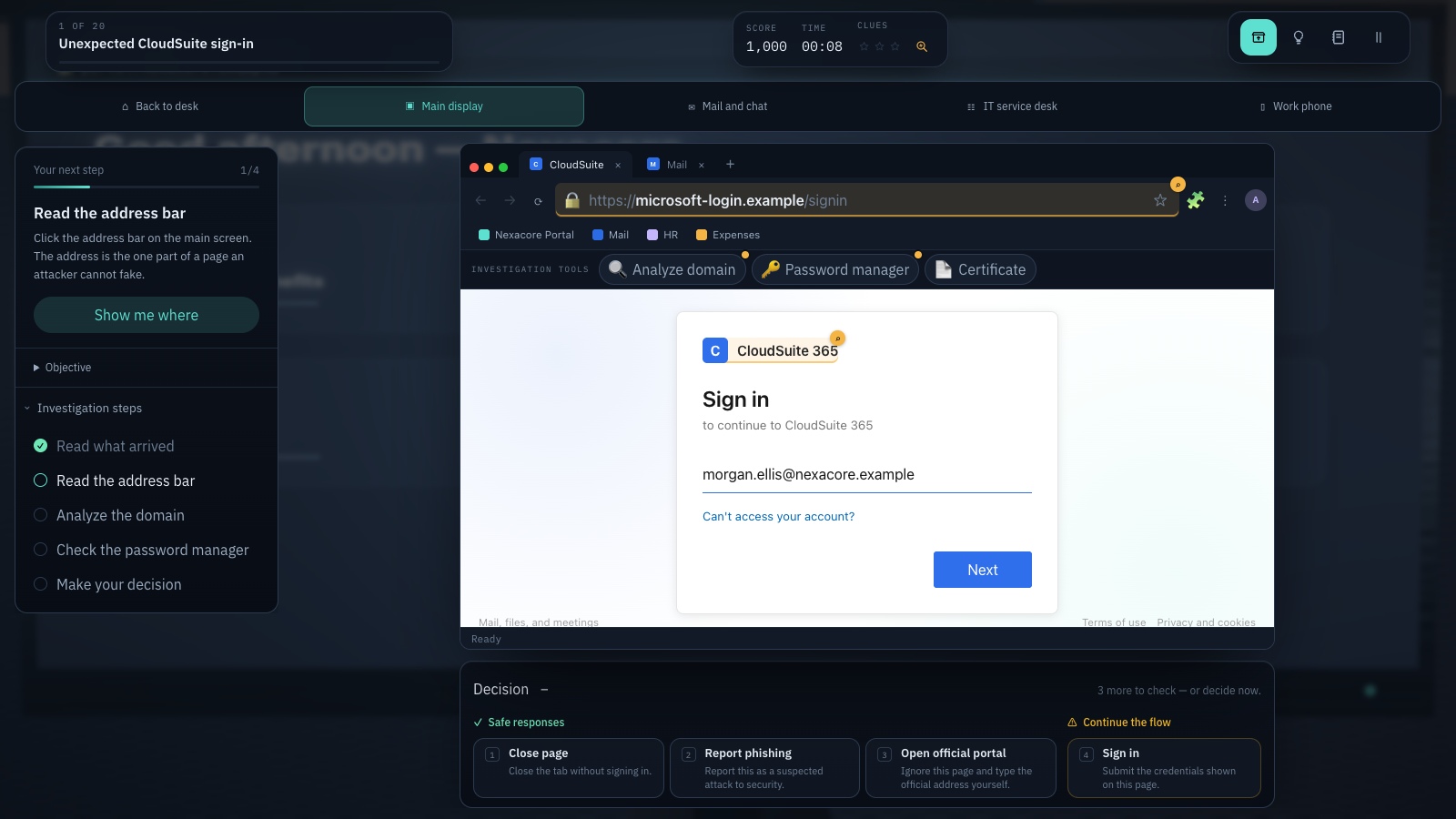
In https://login.northstar.example/session, the hostname is login.northstar.example. The /session part is a path chosen by the site. In the fictional hostname northstar.example.secure-access.example, the familiar words on the left sit underneath secure-access.example. Their presence does not make the destination part of Northstar.
Do not teach “take the last two words” as a universal rule. Public suffixes can contain more than one label, such as co.uk, and some hosting platforms have separate registration boundaries. The Public Suffix List describes these distinctions. A trustworthy inspection tool can help identify the relevant boundary, but an employee can always choose the approved portal instead of trying to resolve an unfamiliar address under pressure.
Expand image · Game screenshot · English interface
- Inspect the registrable domain
Read the registrable domain carefully; familiar words elsewhere in an address do not establish its owner.
- Use your known portal
Reach the service through a known portal and consider the context from your approved password manager.
Section sources: Learn more about the Public Suffix List
Use this address-reading worksheet
Assume the organisation’s approved portal is portal.northstar.example and its approved sign-in service is login.northstar.example. Every address below is a reserved example, not a live destination. Read the hostname aloud and separate the familiar brand text from the domain that contains it.
These examples deliberately avoid deciding trust from appearance alone. A plausible path or matching brand name is not authentication. For the approved example, the task must also be one you intended to perform. An unexpected request to approve access deserves verification even if a genuine identity provider is involved.
| Displayed address | What to notice | Next step |
|---|---|---|
| login.northstar.example | A known sign-in hostname in this fictional organisation | Continue only for an expected, approved task. |
| northstar.example.secure-access.example | The brand text is beneath secure-access.example | Use the known portal; do not enter credentials. |
| northstar-login.example | A different domain containing familiar words | Verify independently; a name resemblance is insufficient. |
| secure-access.example/northstar/login | The brand appears in the path, not the hostname | Use the known portal. |
| An address drawn inside a webpage | It may be an imitation of browser controls | Inspect the real browser address bar. |
Treat password-manager behaviour as a useful signal
If your approved password manager normally fills a work login and is now silent, pause. The saved credential may not match the current site. Other explanations are possible: the vault is locked, the extension is unavailable, the form changed or a legitimate new sign-in domain is being introduced. Non-fill alone cannot establish fraud.
Do not solve the uncertainty by copying a password into the questionable page or adding its address to the saved entry. Open the approved portal, check whether the manager works there and ask your service desk about a new destination. NIST SP 800-63B-4 requires services following its guidance to support password managers and autofill; that supports their use, not a claim that any manager detects every phishing attempt.
Section sources: SP 800-63B-4: authenticators, including password-manager support
Distinguish browser controls from a window drawn in the page
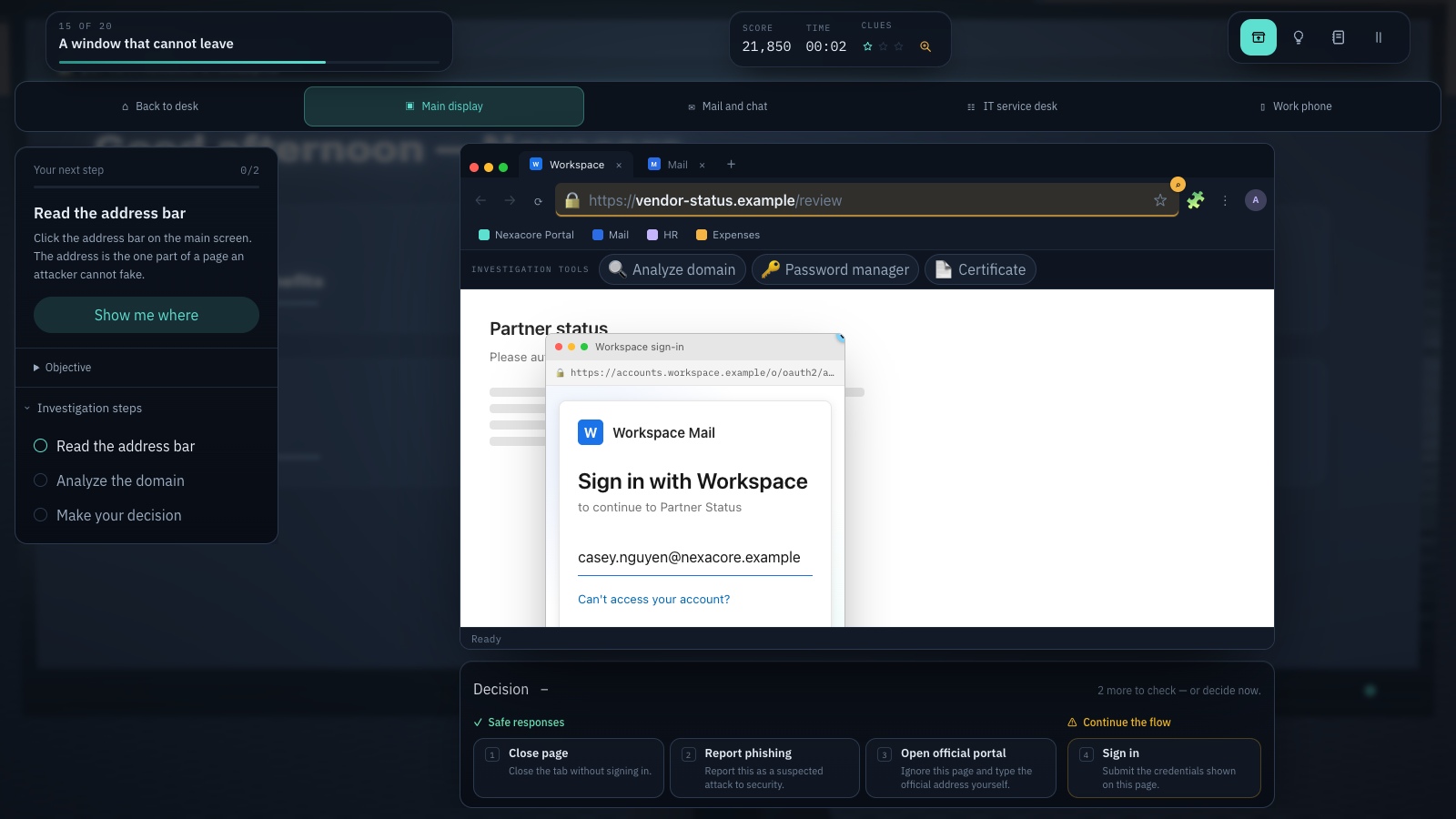
A webpage can draw something that resembles a separate sign-in window, including its own address bar, certificate icon and close button. Those pixels are part of the page. Reading the “address” printed inside that imitation tells you only what the page designer chose to display.
Use the actual browser controls to inspect where you are. On a small screen, reveal the real address bar before entering information. If a popup or embedded view makes the destination hard to establish, close that flow and return through the known app or portal. Do not rely on whether a mock window looks movable, polished or identical to a screenshot you saw in training.
Allow for legitimate sign-in redirects
Organisations often use a separate identity provider for single sign-on. A move away from the company’s main website is therefore not automatically suspicious. The useful check is whether the destination is part of the approved sign-in process and whether you initiated the task. Ask IT to document the expected route so employees are not forced to memorise a growing list of domains.
Starting at a known portal is a safer fallback than following an uncertain message, but it does not authorise every subsequent action. Check the account, application and permission being requested. If a caller asks you to sign in or approve access for a task you did not initiate, verify that request through the normal support route. Address checks and request checks work together.
If you already entered a password or approved access
Stop using the questionable flow and report it immediately through your workplace’s established security channel. State what you entered or approved, the time, the service involved and whether you also downloaded or ran anything. If you can safely preserve the original message or address without reopening the page, provide it through the approved reporting route.
Use the genuine service and your organisation’s instructions for credential recovery. Tell responders if the password was reused elsewhere or if you entered a one-time code or approved an MFA request. Account sessions or application permissions may need separate action; changing a password is not a universal guarantee that all access has ended. Do not return to the suspected page to check whether your password still works.
Practise with Find the Fake Login
Find the Fake Login provides fictional sign-in situations with domain inspection, password-manager checks, certificate information and an option to open the official portal. Use the subdomain and autofill examples to explain what each signal tells you. Include a legitimate sign-in so that the task does not reward rejecting every page.
Some scenes imitate browser controls inside the game, which is itself a simulation. Apply the real-browser distinction above when transferring the lesson to work. The completion criterion is a safe route plus an explanation, not merely clicking the right classification. Never enter an actual work password into a training example or ask learners to share one.
Make the safe decision in a new sign-in example
For this exercise, assume that portal.northstar.example is the approved starting point and that the service desk has published the normal sign-in route. Read the whole scenario before choosing. The point is to preserve the legitimate task while resolving the unexpected destination.
Build a sign-in habit in English
This guide, the CyberPlay interface and Find the Fake Login are available in English. Practise the domain, autofill and official-portal decisions, then repeat the address worksheet with a different fictional brand. The gameplay pictures show the English interface and do not depict a real attack against a customer.
At work, keep the approved portal and reporting route easy to find. Ask learners to demonstrate where the actual browser address appears on their usual device without signing in to any test site. Review unfamiliar examples later and listen to the reasoning. A completed game or remembered logo is not proof that every future phishing page will be recognised.
Practise fake-login checks in English
Use Find the Fake Login to inspect the destination, interpret autofill and choose the official portal. Explain the decision without using real credentials.
Open Find the Fake LoginSources and further reading
- An Update on the Lock Icon — Chromium team, 2023. Accessed 2026-09-13
- Learn more about the Public Suffix List — Public Suffix List project. Accessed 2026-09-13
- SP 800-63B-4: authenticators, including password-manager support — NIST. Accessed 2026-09-13
Keep exploring
- Phishing email examples for training: inspect, verify and report
Use fictional phishing email examples for HR, invoices, deliveries and sign-ins, plus legitimate controls. Each includes a safe decision, verification route and debrief.
EN · 8 min read - QR-code phishing training: check the destination before the decision
Teach employees to handle QR-code phishing with destination checks, independent verification and realistic parking, workplace poster and sign-in exercises.
EN · 8 min read - Phishing training games: practise the decisions behind a suspicious message
Use phishing training games to rehearse inspection, independent verification and reporting. Includes a fictional supplier message and a practical session plan.
EN · 8 min read - ClickFix and fake CAPTCHA scams: what employees should do
A fake CAPTCHA asks you to run a command? Learn the ClickFix warning signs, what to report before or after execution, and practise the decision in English.
EN · 8 min read - Prompt injection training for employees: check what your AI assistant can do
Teach employees to check AI actions, protect work data and report mistakes. Pair CyberPlay Courses with Data Dash practice and a practical approval checklist.
EN · 8 min read - Session and device-code phishing: why a real login page is not enough
Compare session-cookie theft, device-code phishing and OAuth consent. Learn the safe employee action with CyberPlay Courses and Find the Fake Login.
EN · 8 min read