CyberPlay editorial team · Published · Updated · 8 min read
Guide and exercises in English
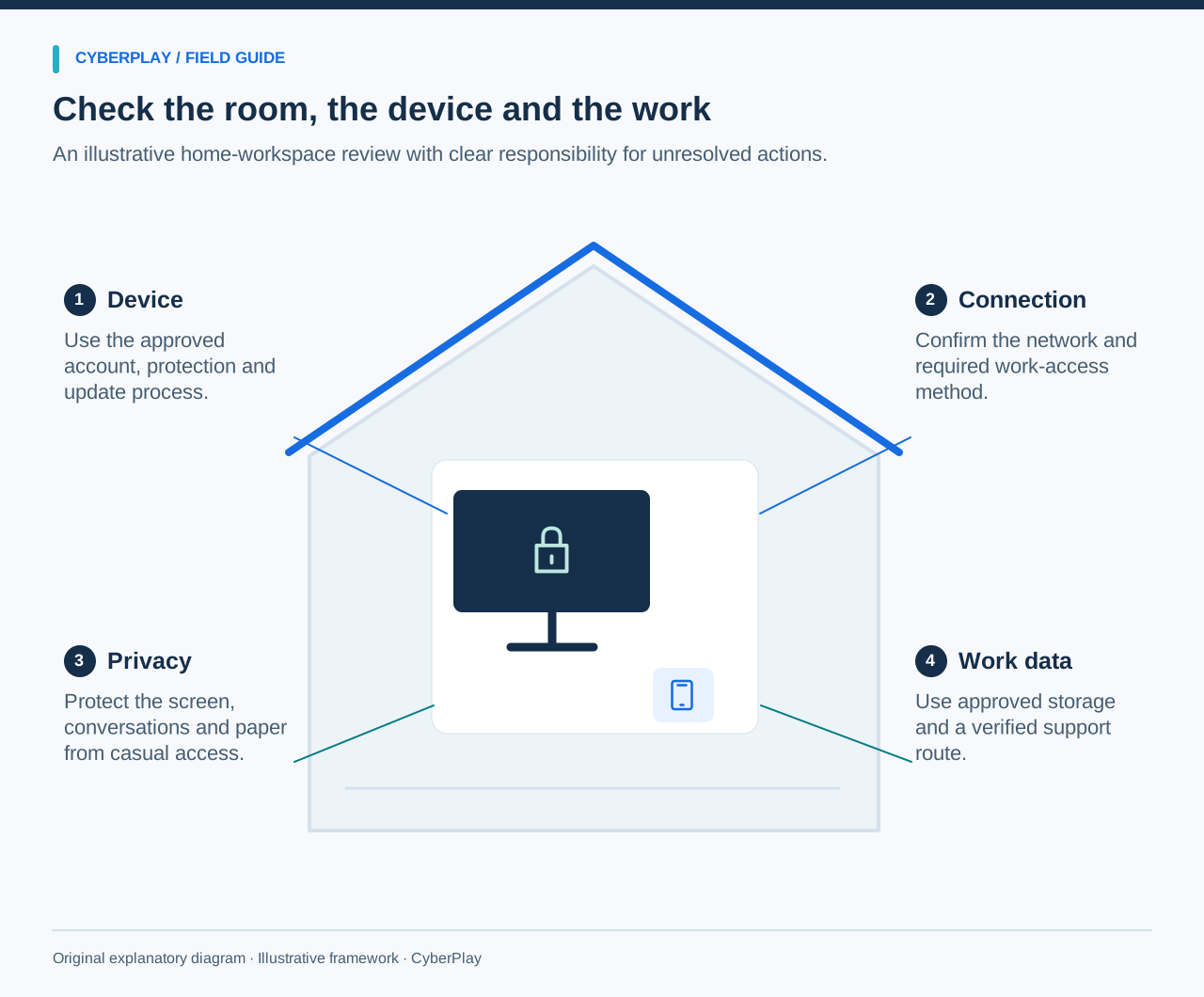
Home-office cybersecurity starts with a few clear boundaries: use the approved device and connection, keep household access separate from work access, store work files in authorised places, and know how to reach support independently. Check the room as well as the laptop. A secure sign-in does not hide papers from visitors or prevent a private file being shared through the wrong account.
This guide turns those boundaries into a practical review for remote employees. It includes an original checklist with responsible owners, a fictional household exercise and practice in Secure Your Home Office. Make changes only within your authority. Employer-managed devices and network controls should be handled through the organisation’s support process.
What you’ll take away
- Protect work access even inside a trusted household.
- Use the approved device, storage and remote-access route.
- Separate what you can fix now from what needs IT, the provider or a records owner.
- Verify unexpected support contact and report what actually happened.
1. Know what is approved before the working day
Write down your organisation’s permitted work device, file-storage location, remote-access method and incident contact. If you use a personal device under an approved BYOD arrangement, follow those specific requirements; permission to read a work message does not automatically permit copying a customer database onto a home computer.
Decide what happens when the normal arrangement fails. A slow laptop, lost phone or unavailable office service should have a support route. Plan the fallback before a deadline creates pressure to use personal email, an unfamiliar remote-control application or an unapproved family computer. Record useful contact details without placing passwords in the note.
2. Keep the work device ready and under your control
Use the required updates and security tools, and allow managed maintenance to finish through the approved process. Do not turn off protection to make a file open. Report persistent warnings or update failures to support. A personal application that seems useful still needs the organisation’s approval before it receives work data.
Lock the ordinary office laptop when you step away and keep its account for its authorised user. A family member borrowing it for homework may unintentionally expose or change work material. NCSC end-user guidance should be adapted to the actual devices and business processes; a generic checklist cannot determine every organisation’s configuration.

Expand image · Game screenshot · English interface
- Review devices and storage
Check which devices and storage locations hold work information, and identify any access or sharing questions.
- Use approved work channels
Keep work communication and files in approved channels and storage, even when personal alternatives seem more convenient.
Section sources: Device security advice for end users
3. Check who owns the home network settings
For a router you own and administer, confirm that supported security updates are available, that Wi-Fi encryption uses an appropriate modern option such as WPA2 or WPA3, and that administrative access is protected. The Wi-Fi joining password and router-administration password are different controls. Use the manufacturer’s or provider’s verified instructions.
The FTC’s home-network guide explains these basic controls. If the provider manages updates or an employer supplied the router, ask the responsible team rather than resetting it. Consider a properly separated guest network for household visitors where supported and appropriate. It does not replace the work device’s protections or your employer’s remote-access requirements.
Section sources: How to secure your home Wi-Fi network
4. Look at what other people can see and hear
Choose a screen position that reduces viewing from windows, hallways or shared seating. Keep printed work out of household circulation and secure it when you finish. For confidential calls, consider who can hear your voice as well as the sound from the computer; headphones protect only one side of that conversation.
Check smart speakers, televisions used for casting and other recording-capable devices near the work area. You do not need to assume every device is secretly recording. Understand the devices present and follow the organisation’s rules for sensitive discussions. Change the working arrangement when you cannot provide the privacy the task needs.
5. Put files where the organisation can manage them
Use the authorised work location and appropriate sharing permissions. Sending a spreadsheet to personal email or a private cloud drive creates copies outside the expected work process. A folder being visible only to you today does not answer who can administer it, how long it remains or how the organisation can recover it.
Secure Your Home Office includes a fictional upload decision in which corporate SharePoint is the approved destination. That is the scenario’s policy, not a claim that one vendor is always safe. In your workplace, use the actual approved service and account. Ask about recovery and version history rather than assuming a synchronised folder is a complete backup system.
6. Check meetings, sharing and unexpected support calls
Before a call, check the invite and participants, close material that should not be shared and select the intended window. Understand whether recording, transcription or an AI attendee is present and authorised. NCSC’s March 2026 meeting guidance covers participant access, surroundings and the handling of meeting data; a blurred background alone does not protect a shared screen.
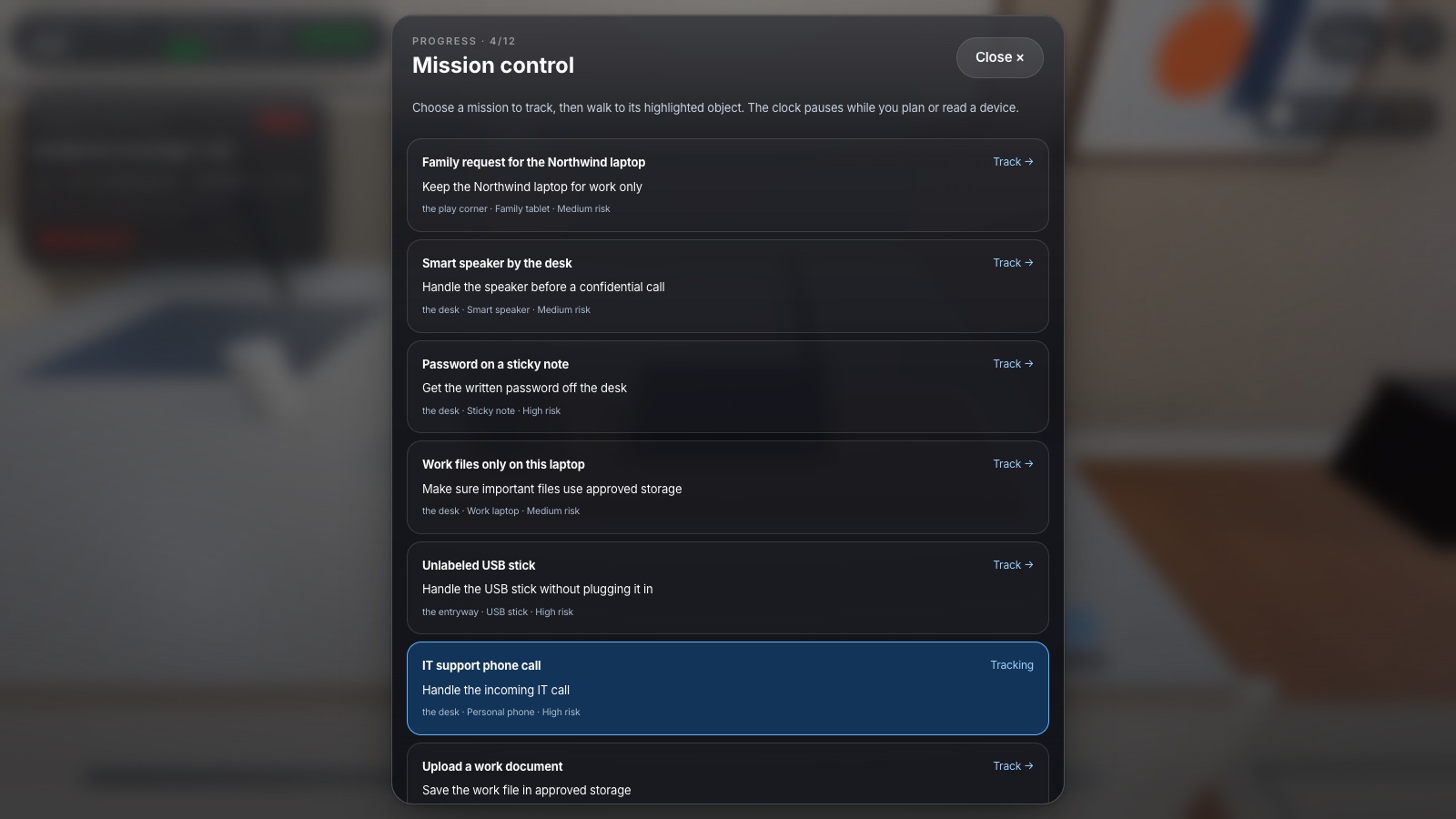
If a caller claims to be IT and asks you to approve a sign-in or install a tool, verify the request using the established directory or support channel. Do not use a callback number supplied only by that caller. Deny an MFA prompt you did not initiate and report it; an unexpected prompt needs attention but does not by itself prove the cause.

Expand image · Game screenshot · English interface
- Reject an uninitiated request
Deny a sign-in approval you did not initiate, even if another message urges you to accept.
- Report through official support
Contact the established helpdesk or security team and explain when the unexpected approval requests appeared.
Section sources: How to secure your online meetings
7. Use a checklist with an owner for each gap
Walk through the environment before opening sensitive work. Mark each check as ready, needs action or not applicable, and give every unresolved action an owner. The table is an original planning aid; completion records a review, not certification or proof that no incident can happen.
| Check | What ready looks like | Who resolves a gap |
|---|---|---|
| Work device | Approved account, required protection and updates working. | Employee follows the managed process; IT resolves blocked controls. |
| Network | Known connection and the required remote-access method. | Router owner, provider or IT, according to responsibility. |
| Room and screen | Sensitive information is not casually visible or audible. | Employee changes position or agrees another working arrangement. |
| Files and paper | Approved storage, sharing and secure paper handling. | Employee and information owner; IT supports access and recovery. |
| Meetings | Expected participants and an understood sharing/recording process. | Meeting organiser and relevant information owner. |
| Support | Verified incident contact and a usable fallback. | Employee records the route; support confirms coverage. |
8. Practise the choices in Secure Your Home Office
Explore the fictional flat and select a situation to inspect. The game includes an exposed work screen, household use of the laptop, a router decision, a personal-cloud upload and unexpected authentication requests. These provide separate decisions to explain; changing a simulated router setting does not configure or inspect your real router.
CyberPlay’s interface, guides and assessments are available in English and eight other supported languages. Secure Your Home Office lists all nine game languages in its catalogue. Check the game page before assigning it and use the language the employee works comfortably in. The article’s screenshots use English; source documents may use another language.
9. Try a new household scenario
After playing, change the details and ask for a workable sequence of actions. The exercise should test the reason for the boundary, rather than recall of where an object stood in the game. No real family information or customer document is needed.
10. Recheck when the environment changes
Repeat the relevant checks when you change router, move rooms, start working from another household or adopt a new meeting tool. A periodic reminder can help, but the meaningful trigger is a changed device, setting, task or access requirement. Share obstacles with the responsible team so the approved workflow remains usable.
If work material may have been exposed, report the time, device, information type and actions taken. If an unexpected caller received access or you approved a sign-in, say that plainly through the verified route. Do not hide the event, investigate another person’s account or move more work data to personal tools while trying to fix it. Follow the authorised response instructions.
Practise reviewing a home workspace
Explore Secure Your Home Office and explain choices about screens, household access, work storage and unexpected requests. Consult the game page for supported languages.
Explore Secure Your Home OfficeSources and further reading
- Device security advice for end users — UK National Cyber Security Centre. Accessed 2026-09-13
- How to secure your home Wi-Fi network — US Federal Trade Commission. Accessed 2026-09-13
- How to secure your online meetings — UK National Cyber Security Centre. Accessed 2026-09-13
Keep exploring
- Security awareness training topics: choose by role and workplace risk
Choose employee security awareness topics by role and workplace risk. Use a practical curriculum matrix for phishing, accounts, data, physical access, AI and reporting.
EN · 9 min read - Clean desk and clear screen: a practical security checklist
Use a clean desk and clear screen checklist for papers, printouts, badges and devices. Practise classifying information and choosing secure storage or disposal.
EN · 8 min read - Cloud sync vs backup: can you recover your work?
Understand cloud sync, version history and protected backups. Follow a fictional file through an incident and learn which recovery questions to ask your IT team.
EN · 8 min read - Unexpected MFA request? What to do when you did not sign in
Received an MFA prompt you did not initiate? Learn when to deny it, verify a support call, report an accidental approval and practise the decision in English.
EN · 8 min read - Security awareness courses: build a programme that connects learning with practice
Build a security awareness programme with short video courses, realistic games and knowledge checks. See role-based examples and what each result can prove.
EN · 8 min read - Human risk management: how organisations turn evidence into action
Learn what human risk management means, how it helps organisations and where CyberSense learning insights fit. A practical guide with examples and an exercise.
EN · 8 min read