CyberPlay editorial team · Published · Updated · 9 min read
Guide and exercises in English
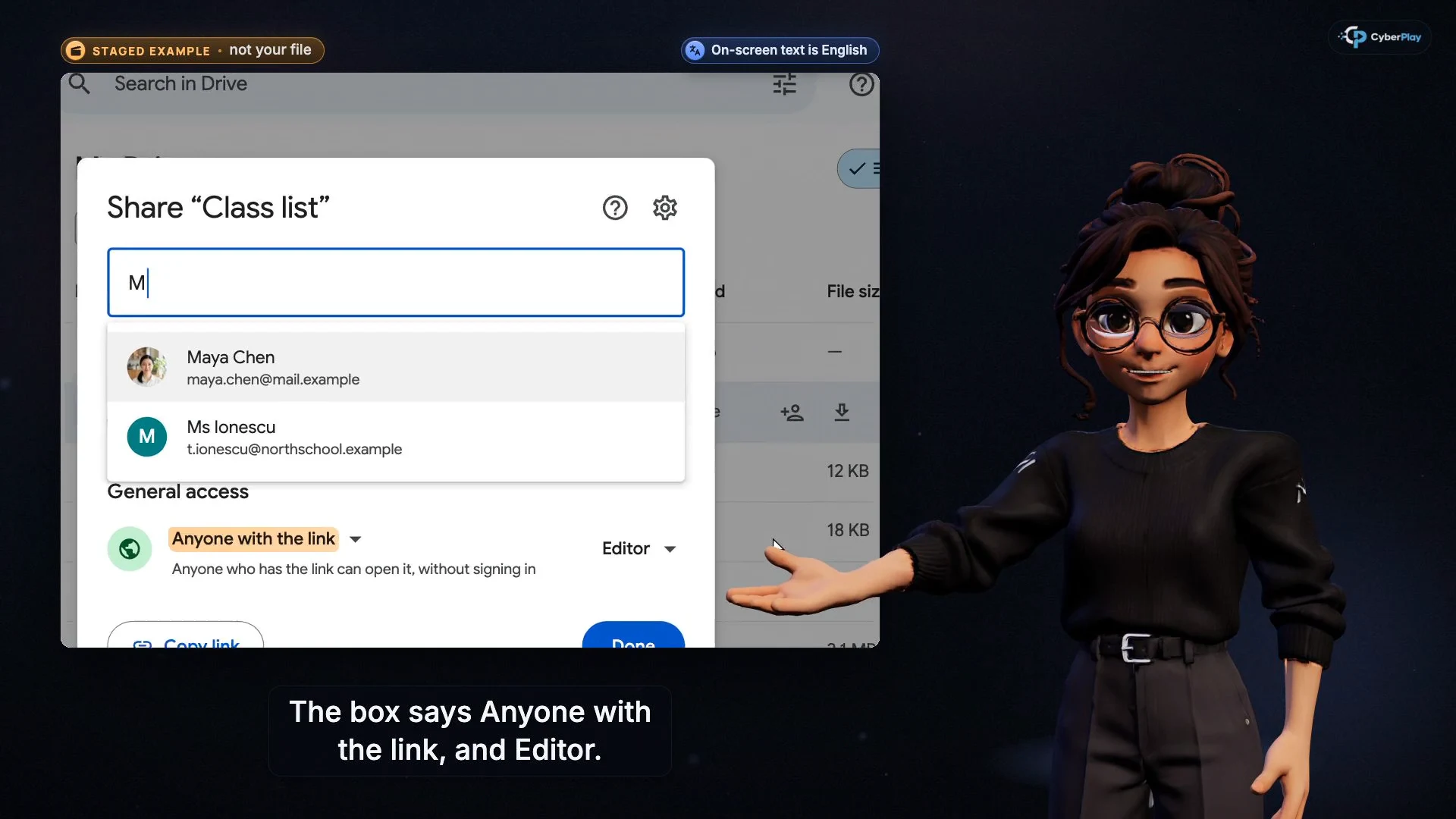
Expand image · Course video frame · English interface
Cybersecurity awareness training for schools works as a practical lesson when learners can explain three decisions: how to check an unexpected message, who should receive a file, and where to ask for help after a mistake. Start with one familiar school task, use a short course segment to explain it, practise in a fictional scenario, then rehearse the school’s actual reporting route. Staff and students need different responsibilities within that sequence.
This guide connects CyberPlay Courses with teacher-led activities and Data Dash. It is a suggested teaching plan, not an age rating or a claim that one lesson secures a school. Preview the material for your learners’ reading level, needs and experience. Articles, the platform interface and Data Dash support nine site languages; course narration and lesson content are currently available in English and Romanian.
What you’ll take away
- Choose a school decision before choosing a video or game.
- Separate staff responsibilities from the help-seeking actions expected of students.
- Preview the language, scenarios and controls before using an activity with a class.
- Use fictional records and review explanations, rather than treating a game score as proof of safety.
1. Give staff and students different responsibilities
A school administrator might verify a changed supplier account or decide which colleagues can access a pupil record. A student might receive a suspicious project link and need to stop and ask a teacher. Both decisions involve trust, but the student should not be asked to investigate the school’s systems, approve a payment or resolve a data incident. Write down who takes the next step before running the activity.
The NCSC provides a school-staff training package for group delivery or individual learning. CISA’s education programme separately supports educators with curricula, professional development and classroom resources. Use that distinction in your own planning: provide staff with procedures for their roles, and give students a manageable decision plus a known adult who can help. A single assembly can introduce the subject; follow-up should reflect what each group actually does.
Section sources: Cyber security training for school staff · Cybersecurity Education and Career Development
2. Preview the course before putting it on the classroom screen
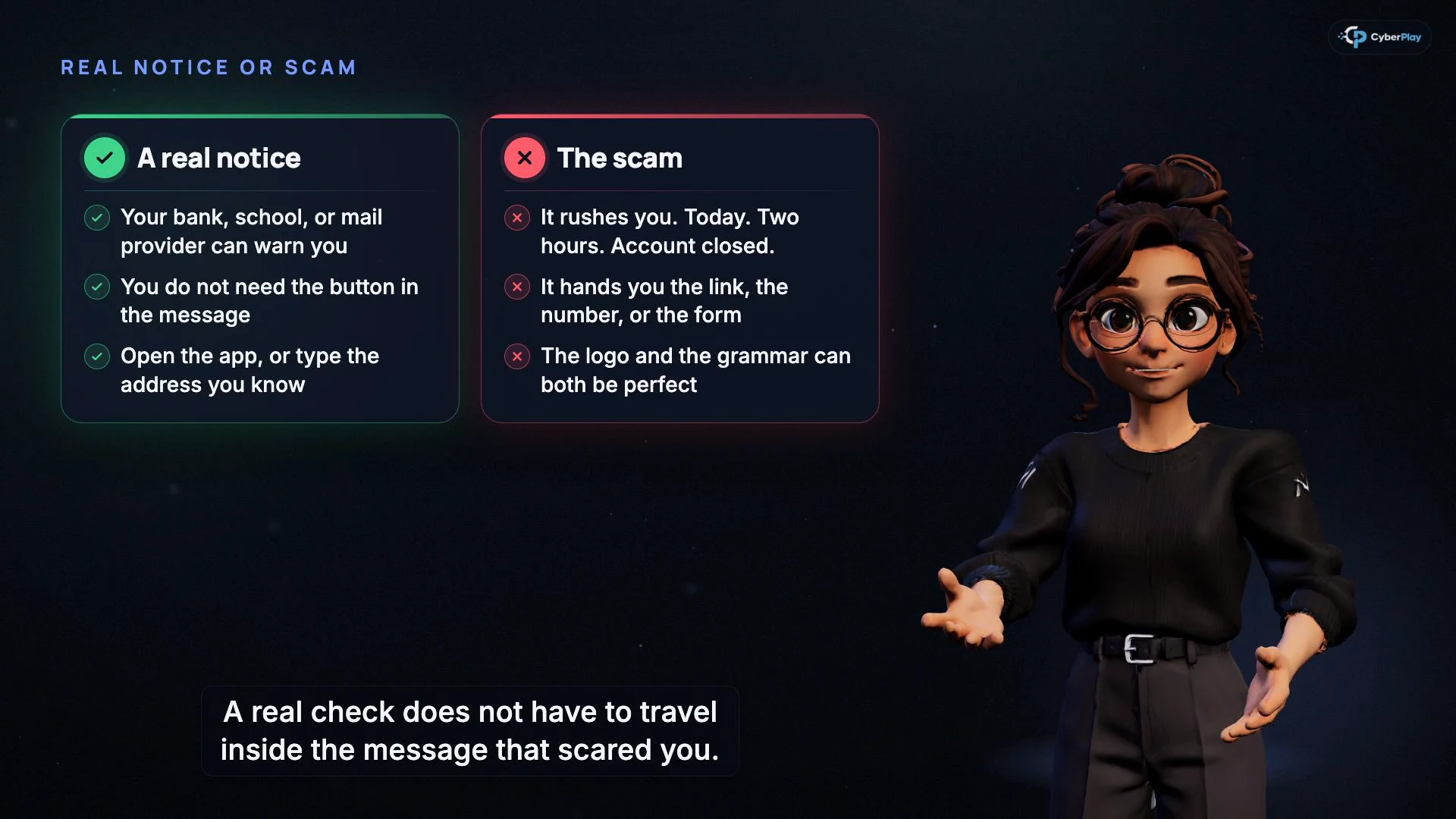
Modern email phishing teaches learners to examine what a message asks them to do and check through a route they already trust. Name the people before you share adds recipient selection and access permissions. I clicked. What now? distinguishes clicking a link from entering a password, granting access or installing software. Choose one decision for the first session; these are separate lessons, not a single school-specific course.
Watch the selected lesson first, read its questions and try the game on the devices you will use. Check the language, reading load, audio, controls, scenario themes and discussion time. Data Dash currently carries a 13+ age label; use the proposed game activity within that stated range and after your own review. For younger learners, the NCSC’s CyberSprinters activities explicitly target ages 7–11 and include practitioner resources. That age range belongs to CyberSprinters, not to CyberPlay. Adapt or omit examples that your class cannot use meaningfully.
Expand image · Course video frame · English interface
- Find the known route
Use the school’s approved app or contact; ask a trusted adult when a request is unclear.
- Separate the request from verification
A link or phone number supplied in the message is part of the request you are checking.
Section sources: CyberSprinters: practitioner-led activities
3. Plan a 45-minute lesson around one decision
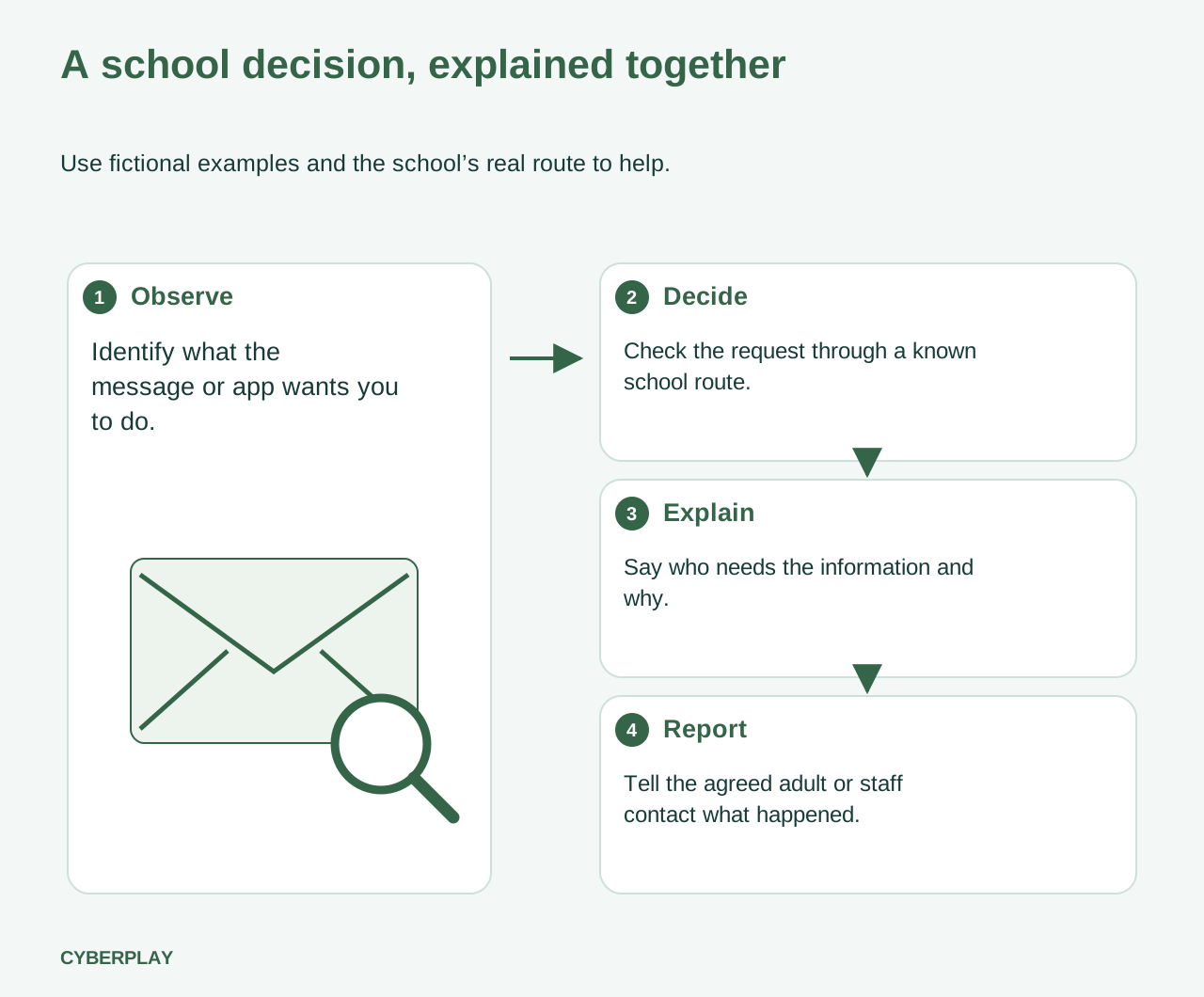
The timetable below is an original planning example for a class whose teacher has approved the material. It budgets a selected course segment and checkpoint, a short game activity and discussion. It does not promise completion of a full course, every game scenario or a knowledge check within one period. Adjust it after your own rehearsal, and leave setup or individual account access outside the teaching slot where possible.
| Time budget | Teacher-led activity | What learners explain |
|---|---|---|
| 5 minutes | Show a fictional school message and identify its request. | What action is being requested, and who would be affected? |
| 10 minutes | Use a preselected course segment and discuss one checkpoint. | Which independent route could confirm the request? |
| 10 minutes | Try a short Data Dash activity and inspect a relevant learning question. | What access does the tool need, and what is unnecessary? |
| 10 minutes | Work through the fictional sharing exercise below in pairs. | Who may receive the file, and who decides when this is unclear? |
| 5 minutes | Rehearse the school’s reporting route using invented facts. | Which adult or staff contact should receive the concern? |
| 5 minutes | Use an exit question and collect topics to revisit. | What would I do next if I had already clicked? |
4. Give teachers a separate file-sharing rehearsal
Cyber security training for teachers should use decisions that arise during teaching and administration. Prepare a fictional trip-planning spreadsheet with an itinerary on the first tab and invented contact details on another. Ask a teacher to explain which information a visiting workshop provider needs, whether the school has approved that recipient, and how to share only the authorised content. A harmless-looking first page does not describe the whole file.
Connect this discussion to Name the people before you share: choose named recipients, inspect the addresses and start with the least access needed. Then demonstrate your school’s approved sharing process with an empty practice file. Let the responsible staff member resolve uncertain permissions. Do not put real pupil records, family contact details, safeguarding notes or staff credentials into the training example. Record a missing procedure as something to fix, rather than asking the teacher to guess.
5. Use cybersecurity games for students as a discussion prompt
Data Dash connects movement and delivery decisions with security ideas. One mechanic contrasts a data magnet that collects nearby capsules with one that asks to read private cargo. Its optional learning questions include checking an official school announcement, keeping a home address private, signing out of a shared school computer and telling a trusted adult after a suspicious click. The learning questions are available outside active running, so use a pause to read and discuss them.
Ask learners to explain the permission decision, then change the setting: what would an app collecting material for a school project actually need? The game’s fictional cargo provides an analogy, not a real pupil-data system. A fast run measures more than security understanding, including familiarity with the controls. Let learners discuss the same decision without playing when that suits their needs, and assess the explanation separately from movement or score.
6. Make asking for help part of the activity
Before anyone practises reporting, identify the people who will receive a concern. For a student, this may be their teacher or another trusted adult through the school’s agreed route. For staff, it may be the designated IT or incident contact. Show what to do if the usual person is unavailable. Do not make learners find help by searching within the suspicious message itself.
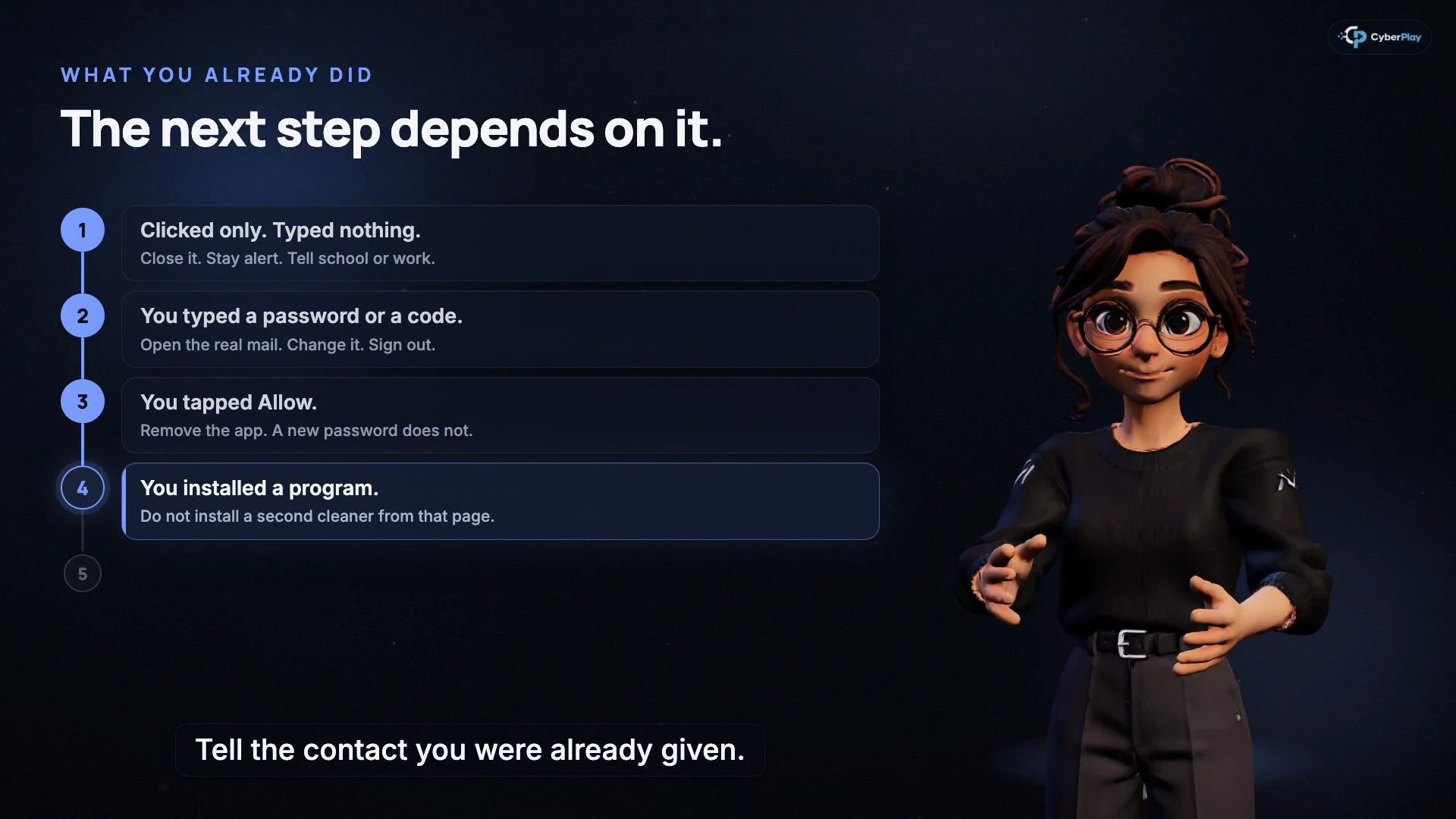
I clicked. What now? supplies a useful structure: say what happened, when, and whether you entered information, approved access or installed something. Practise with invented details and never include passwords. The NCSC’s security-culture guidance recommends accessible reporting routes and fair treatment when people admit mistakes. Model that response: thank the learner, stop further interaction with the request and explain who will take over. Test the real school contact route separately from the lesson.
Expand image · Course video frame · English interface
- Describe what happened
Help the school contact distinguish a click from a password, permission or installation. Do not include passwords in the report.
- Use the contact already provided
Pupils ask the trusted adult or school contact they were given; staff follow the school’s incident procedure.
Section sources: Cyber security culture principles: build safety, trust and processes for openness
7. Exercise: the science-fair sheet is ready to share
Give each group the following fictional message and a paper drawing of a sharing panel. Use invented names and no working links. Ask students to describe what they would stop and whom they would ask. Ask staff separately what they would verify before approving a share. No one needs to change a real account or send a file.
8. Review the reasoning and the school process
Use three exit questions: What action was requested? How would you check it independently? Who would help if you had already acted? A learner who can identify a suspicious message but cannot name a trusted route needs a different follow-up from someone who found the right contact but misunderstood a permission. Invite a spoken explanation, a drawing or a short written response according to the class’s needs.
Keep course progress, game decisions and teacher observations as distinct evidence. Use the learning records available in your workspace to organise follow-up, with access appropriate to the school’s policy. A completion certificate records completion; a score does not establish that a child will handle every future message safely. Avoid public comparisons of individual mistakes. If the activity reveals that nobody monitors the stated reporting route, give that process problem an owner.
9. Turn the lesson into a small school routine
Revisit the same decision when a new class platform, project or sharing process is introduced. Change the fictional request and ask learners to explain their response again. Brief staff who receive reports so they know the lesson’s wording and the next step. Give families a simple description of the habit being practised without sending home student scores or examples containing personal information.
The NCSC’s school resources distinguish governing boards, staff and school IT responsibilities. Keep the lesson within that wider work: leaders and technical teams still own account protections, backups, supplier decisions and incident handling. Explore the CyberPlay schools page for the current classroom setup, then choose a small sequence of Courses and practice that your teachers have previewed and can support.
Section sources: Cyber Security for Schools
Connect a classroom decision with Data Dash
Preview Data Dash, discuss a permission choice and use its learning questions to practise checking information and asking for help. Match the activity to your class and account access.
Open Data DashSources and further reading
- Cyber security training for school staff — UK National Cyber Security Centre. Accessed 2026-10-03
- Cybersecurity Education and Career Development — Cybersecurity and Infrastructure Security Agency. Accessed 2026-10-03
- CyberSprinters: practitioner-led activities — UK National Cyber Security Centre. Accessed 2026-10-03
- Cyber security culture principles: build safety, trust and processes for openness — UK National Cyber Security Centre. Accessed 2026-10-03
- Cyber Security for Schools — UK National Cyber Security Centre. Accessed 2026-10-03
Keep exploring
- Cyber security awareness for universities: a course plan
Build university cyber security awareness with student induction, staff and research pathways, CyberPlay Courses, practical games and a campus reporting exercise.
EN · 10 min read - Security awareness courses: build a programme that connects learning with practice
Build a security awareness programme with short video courses, realistic games and knowledge checks. See role-based examples and what each result can prove.
EN · 8 min read - Phishing training games: practise the decisions behind a suspicious message
Use phishing training games to rehearse inspection, independent verification and reporting. Includes a fictional supplier message and a practical session plan.
EN · 8 min read - How to spot a fake login page—even when it uses HTTPS
Check a login page’s real address, password-manager signals and request context. Learn why HTTPS is not proof of trust, with an English practice exercise.
EN · 8 min read - Prompt injection training for employees: check what your AI assistant can do
Teach employees to check AI actions, protect work data and report mistakes. Pair CyberPlay Courses with Data Dash practice and a practical approval checklist.
EN · 8 min read - Cybersecurity training for banks: role-based scenarios and DORA considerations
Plan bank employee cybersecurity training around payment checks, identity verification and reporting, with DORA context and a practical role-based matrix.
EN · 8 min read